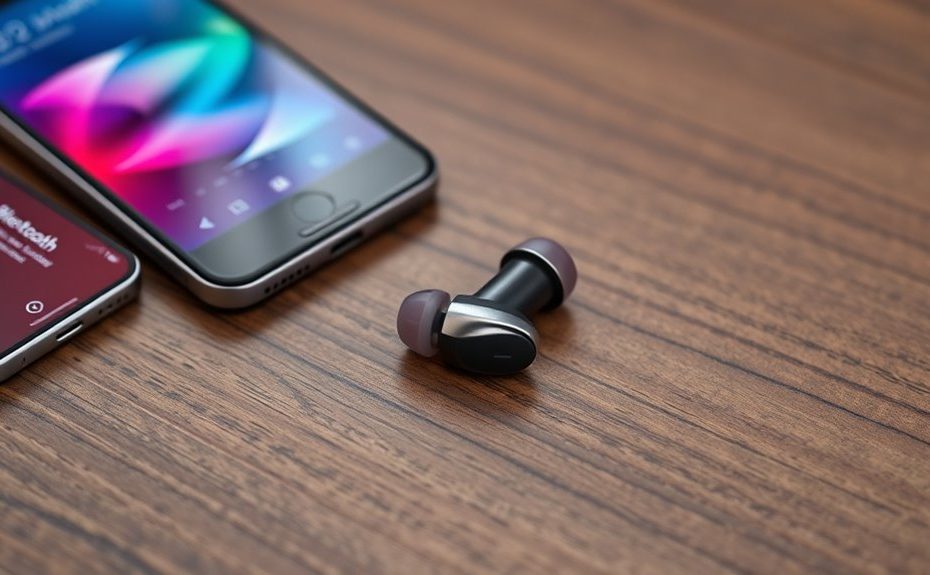
If you’re experiencing Bluetooth stuttering with LE Audio, check your device’s codec and multipoint support. Using incompatible codecs or multiple device connections can cause interruptions. Make sure your devices support LC3 codec and keep firmware or software up to date. Minimizing interference and staying close to your source also helps. Adjusting codec settings or disconnecting unnecessary devices can improve stability. Keep exploring further tips to achieve smooth LE Audio streaming in various scenarios.
Key Takeaways
Ensure your device supports the LC3 codec and is configured to prioritize it in settings for optimal LE Audio quality.
Disable or disconnect unnecessary Bluetooth devices to reduce interference that may cause stuttering during multipoint connections.
Update firmware, drivers, and software on both source and audio devices to improve compatibility and stability.
Maintain close proximity between devices and minimize wireless interference from Wi-Fi routers or other electronics.
Test different codec settings in developer options to identify the most stable configuration for your multipoint LE Audio setup.
Understanding Bluetooth LE Audio and Its Benefits
Bluetooth LE Audio, introduced with Bluetooth 5.2, brings significant improvements to wireless audio by increasing efficiency and enhancing sound quality. It uses the LC3 codec, which delivers better audio at lower bitrates than traditional codecs like SBC. This means you get clearer, richer sound without draining your battery faster. The low-latency performance of LE Audio is particularly beneficial for activities like gaming and video streaming, ensuring audio stays synchronized with visual content. LE Audio supports multiple audio streams, making features like audio sharing and hearing aid compatibility possible. It’s backward compatible with classic Bluetooth devices, but you need both devices to support LE Audio for full benefits. Adoption is rising, with many manufacturers releasing LE Audio-enabled headphones and smartphones. Overall, LE Audio offers a more efficient, high-quality listening experience, whether you’re streaming music or using hearing assistance devices. The adoption rate of LE Audio is increasing rapidly, driven by the benefits of improved efficiency and sound quality. Additionally, ongoing research into AI security highlights the importance of safeguarding these advanced technologies from vulnerabilities that could compromise user experience and data privacy.
How Multipoint Connectivity Enhances Listening Experience
Multipoint connectivity allows your headphones or audio device to connect simultaneously to two source devices, such as a phone and a laptop. This feature makes switching between devices seamless, so you don’t need to disconnect and reconnect each time. It’s especially useful when you want to take a call on your phone while listening to music from your laptop. With multipoint, you can prioritize audio streams, ensuring smooth transitions without interruptions. It saves time and effort, providing a more fluid listening experience. However, for peak performance, both devices should support the same Bluetooth version and codecs. Proper configuration can prevent issues like audio dropouts or stuttering, making multipoint a practical way to enhance your overall audio experience.
The Role of Codecs in Bluetooth Audio Quality
Codecs play a vital role in Bluetooth audio quality, affecting both sound clarity and connection stability. The efficiency of a codec determines how well it compresses audio without sacrificing quality, which impacts performance on your devices. Compatibility issues can cause stuttering or dropouts, especially if your devices don’t support the same codec standards. Understanding tiny house regulations can help optimize your setup and avoid potential legal issues with custom or non-standard configurations. Additionally, selecting the appropriate audio compression method can enhance overall listening experience and reduce latency issues. Recognizing different Bluetooth standards can further improve connection reliability and device compatibility.
Codec Efficiency Impact
The choice of audio codec plays a crucial role in determining the overall quality and performance of Bluetooth audio streams. A more efficient codec delivers higher sound quality at lower bitrates, reducing lag and stuttering. Here’s how codec efficiency impacts your experience:
Sound Quality: Efficient codecs like LC3 preserve audio clarity even at lower bitrates. Understanding codec efficiency can help users select the best settings for optimal performance. Additionally, the compatibility of codecs across devices can influence overall audio quality and connection stability. Device compatibility is essential to prevent issues like stuttering or disconnects.
Battery Life: Less processing power means longer device battery life.
Connection Stability: Better compression reduces data load, decreasing dropouts.
Latency: Improved codecs lower delay, making audio sync better with video.
Understanding Codec Efficiency helps users select the best settings for optimal performance. Recognizing the impact of audio codecs on Bluetooth stability can lead to a more seamless listening experience. Proper codec selection and configuration can maximize both performance and device longevity, ensuring a consistent user experience.
Compatibility and Performance
Choosing the right audio codec directly impacts how well your Bluetooth devices perform together. If your devices support LE Audio’s LC3 codec, you’ll experience better sound quality at lower bitrates, reducing stutter. However, mismatched codecs between your source and sink can cause audio dropouts or stuttering. Some devices default to older codecs like SBC or AAC, limiting performance. Compatibility varies across devices and manufacturers; newer devices often support LC3, but older ones may not. To optimize performance, check your device settings and manually select the best codec when possible. Keep your firmware and drivers updated, as outdated software can hinder codec compatibility. Ensuring both devices support and are configured for the same codec helps minimize audio issues and enhances overall Bluetooth audio quality. Additionally, understanding the role of codecs in Bluetooth audio quality can help you troubleshoot and select optimal settings for your devices. Being aware of compatibility issues can also prevent frustrating audio interruptions. Moreover, the impact of codec selection on latency and battery life is an important factor to consider for a seamless listening experience. Regularly reviewing your device’s support for LE Audio can ensure you benefit from the latest improvements in Bluetooth technology. To further enhance your experience, consider checking device specifications for codec support before purchasing new Bluetooth devices.
Common Causes of LE Audio Stuttering
Stuttering in LE Audio often results from interference and compatibility issues that disrupt the Bluetooth connection. These disruptions can cause audio dropouts or pauses. Common causes include:
Wireless interference: Wi-Fi networks, other Bluetooth devices, or physical obstacles can interfere with the signal, weakening the connection. Using interference mitigation techniques can help improve stability in crowded wireless environments.
Outdated drivers or firmware: Using old drivers or firmware on your devices can lead to incompatibility and poor performance.
High bitrate settings: Setting the audio bitrate too high can overload your device’s processing power, causing stuttering.
Power management settings: Power-saving modes on laptops or phones may throttle Bluetooth performance, resulting in audio glitches.
Device compatibility with Vetted – 1st Home Theatre Projector: Ensuring that your audio device supports the latest LE Audio standards can significantly reduce stuttering issues.
Addressing these issues helps guarantee a smoother LE Audio experience.
Diagnosing Interference and Connection Issues
Interference and connection problems are often the main culprits behind LE Audio disruptions. To diagnose these issues, start by checking your environment for potential sources of interference, such as Wi-Fi routers, microwaves, or other Bluetooth devices. Move your audio device and source closer together to improve signal strength. Use a Bluetooth scanner app to identify other nearby devices that could be causing conflicts. Ensure your device’s firmware and drivers are up to date, as outdated software can worsen interference problems. Try turning off other Bluetooth devices temporarily to see if the stuttering improves. Additionally, switch to a less congested Wi-Fi channel if you suspect Wi-Fi interference. Regularly updating your device’s firmware can also help mitigate interference issues and improve overall connectivity. Adjusting refrigerant management in your device can sometimes reduce electrical noise that contributes to connection instability. Improving antenna placement can enhance signal reception and stability. Ensuring that your device operates within optimal Bluetooth operating parameters can further improve connection quality. Being aware of electrical noise generated by nearby electronic devices can also help in troubleshooting connection stability. By systematically eliminating these factors, you can pinpoint and resolve connection issues affecting your LE Audio experience.
Optimizing Settings for Smooth LE Audio Playback
To guarantee smooth LE Audio playback, start by selecting the appropriate codec that matches your device capabilities, like LC3, to optimize sound quality and reduce stuttering. Next, minimize wireless interference by keeping your devices away from Wi-Fi routers and other Bluetooth gadgets. Additionally, using interference reduction techniques can further enhance connection stability. Regularly reviewing your device’s projector bulb maintenance can also help prevent unexpected issues that might impact your audio setup. Ensuring your devices are properly filtering and protecting the signal can improve overall performance and reduce audio disruptions. Finally, keep all your devices updated with the latest firmware and software to fix bugs and improve connection stability.
Select Appropriate Codec
Choosing the right codec is crucial for guaranteeing smooth LE Audio playback. The LC3 codec, supported by LE Audio, offers better sound quality at lower bitrates, reducing the chance of stuttering. To enhance your experience, consider these steps:
Verify device compatibility with LC3 in settings or specifications.
Manually select the LC3 codec in developer options if available.
Avoid high bitrate settings unless both devices support them fully.
Ensure firmware and software are up to date for ideal codec support.
Using compatible codecs helps prevent mismatches that cause audio dropouts. If your device defaults to a less efficient codec like SBC, switching to LC3 can markedly improve stability. Always test after making changes to confirm smoother playback.
Minimize Wireless Interference
Wireless interference is a common cause of Bluetooth LE Audio stuttering, but you can often improve stability by optimizing your device settings. To reduce interference, keep your Bluetooth device away from Wi-Fi routers, microwaves, and other wireless gadgets that operate on similar frequencies. Turn off or disable unused Bluetooth devices nearby to prevent congestion on the same channel. If possible, switch your Wi-Fi to a less crowded channel or frequency band, such as 5GHz, to minimize overlap. Avoid placing your Bluetooth device behind obstacles or in crowded environments. Additionally, make certain your device is within a close range of your audio source, reducing the chance of signal disruptions. These adjustments help create a cleaner wireless environment, resulting in smoother LE Audio playback.
Keep Devices Updated
Keeping your devices updated is essential for ensuring smooth LE Audio playback, as outdated firmware or drivers can cause stuttering and connection issues. To optimize performance, follow these steps:
Regularly check for firmware updates on your headphones, smartphone, and other connected devices.
Install the latest OS updates, since they include important Bluetooth improvements.
Update Bluetooth drivers on Windows or Android to fix compatibility and stability issues.
Enable automatic updates when available, so your devices stay current without manual intervention.
Staying current helps fix bugs, improve codec support, and enhance connection stability. Outdated software can lead to mismatched codecs or reduced performance, so keeping everything updated minimizes potential stuttering and ensures the best LE Audio experience.
Firmware and Driver Updates for Improved Stability
Updating your firmware and drivers is essential for guaranteeing stable Bluetooth LE Audio connections. Outdated firmware or drivers can cause compatibility issues, leading to stuttering, dropouts, or connection failures. Regularly check for updates from your device manufacturer or OS provider, especially after major system updates. Firmware updates often include bug fixes, security patches, and improvements for Bluetooth stability and performance. Driver updates, particularly on Windows or Android devices, can resolve conflicts and enhance compatibility with LE Audio features. Installing these updates ensures your device supports the latest Bluetooth standards and codecs like LC3. Keep your Bluetooth adapters, headphones, and source devices current to minimize interference and optimize connection stability, providing a smoother, more reliable listening experience.
Best Practices for Using LE Audio With Multiple Devices
To get the most reliable and seamless experience when using LE Audio with multiple devices, it’s essential to choose equipment that fully supports both LE Audio and multipoint functionality. This ensures stable connections and better switching. Additionally, keep all devices updated with the latest firmware and OS patches. Avoid high bitrate settings unless both devices support them to prevent stuttering. Minimize interference by keeping your devices away from Wi-Fi routers and other wireless sources. Finally, test audio quality and connection stability after making changes.
Here are some best practices:
Use devices with full LE Audio and multipoint support.
Regularly update device firmware and software.
Limit high bitrate configurations unless supported.
Reduce interference from other wireless sources.
Frequently Asked Questions
Can I Use LE Audio With Non-Bluetooth Devices?
You can’t use LE Audio directly with non-Bluetooth devices because LE Audio relies on Bluetooth technology to transmit audio signals. If your device doesn’t support Bluetooth, you won’t be able to connect LE Audio-enabled headphones or speakers. However, you can use an external Bluetooth transmitter that supports LE Audio with your non-Bluetooth device, like a wired audio source, to enjoy LE Audio features. Just confirm the transmitter supports LE Audio and the LC3 codec.
How Do I Manually Select the LC3 Codec on Android?
You can manually select the LC3 codec on Android by enabling developer options first. Tap ‘Build number’ seven times in Settings > About phone. Then, go to Settings > Developer options and find ‘Bluetooth audio codec’ or ‘Audio codec.’ Select LC3 from the list to prioritize LE Audio quality. Keep in mind, not all devices support manual codec selection, so check compatibility before making changes.
Is Multipoint Supported on All Bluetooth Headphones?
No, multipoint isn’t supported on all Bluetooth headphones. You need to check your device’s specifications to see if it supports connecting to multiple sources simultaneously. While many newer LE Audio headphones do support multipoint, some older or budget models may lack this feature. To guarantee smooth switching between devices, look for headphones explicitly stating multipoint functionality, and keep your firmware up-to-date for best performance.
What Are the Signs of Outdated Bluetooth Drivers Causing Stutter?
You’ll notice stuttering or dropouts when your Bluetooth drivers are outdated. Your audio may cut in and out unexpectedly, or connections might become unstable. You might also experience lag or delays between your device and headphones. Sometimes, your device won’t recognize new Bluetooth devices or won’t connect properly. To fix this, update your Bluetooth drivers through your device’s support website or device manager, ensuring compatibility with your current OS.
How Does High Bitrate Affect LE Audio Stability?
High bitrate affects LE Audio stability by overloading your device’s processing power, causing buffering, dropouts, and stuttering. When you stream at higher bitrates like 990 kbit/s, your device struggles to handle the data flow smoothly, especially if it isn’t optimized for such settings. To keep your audio stable, stick to lower bitrates compatible with your devices, reduce interference, and make certain both source and sink support high-quality codecs.
Conclusion
Now that you understand how multipoint and codec settings influence your Bluetooth LE Audio, you can imagine your devices seamlessly dancing together, delivering crystal-clear sound without interruptions. Think of your headphones as a smooth highway, where interference and stutters are just distant traffic jams you can avoid. With a few simple tweaks and updates, you’ll enjoy a tranquil stream of music, whether you’re juggling calls or immersing yourself in your favorite playlist—your perfect audio journey awaits.