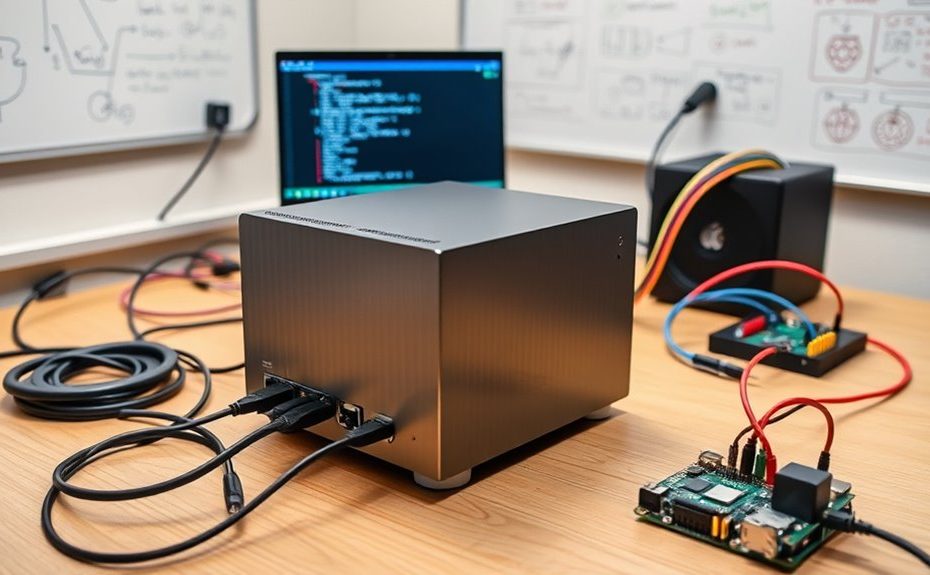
Creating a home lab on a mini PC is an excellent way to experiment with network virtualization, test complex topologies, and develop security configurations without needing extra hardware. You can install virtualization software like VMware, Proxmox, or VirtualBox to run multiple virtual machines and networks simultaneously. Its small size makes placement easy, and hardware upgrades like RAM or storage boost performance as needed. Keep exploring to discover how to optimize your mini PC for various lab projects.
Key Takeaways
Choose a compact, upgradeable mini PC with sufficient RAM, storage, and network interfaces to support virtualization.
Install virtualization software like Proxmox, VMware, or VirtualBox to run multiple virtual machines and networks.
Configure network segmentation with VLANs, firewall rules, and virtual networks for testing security and topology setups.
Connect the mini PC near your networking equipment for easy cable management and improved performance.
Expand hardware capabilities with additional RAM, SSDs, or PCIe adapters to meet growing project or workload demands.
Are you looking to build a powerful yet compact home lab without breaking the bank? A mini PC is an excellent choice for creating a versatile and efficient environment, especially if you want the flexibility to experiment with different setups. One of the biggest advantages of using a mini PC is its ability to support network virtualization, which allows you to run multiple virtual networks on a single device. This means you can simulate complex network topologies, test security configurations, or practice managing various services without needing multiple physical machines. Network virtualization in a mini PC is straightforward; it leverages software solutions like VMware, Proxmox, or VirtualBox, giving you the power to create isolated environments for different projects. This setup is ideal for learning, development, or even small-scale production testing.
Hardware customization is another key benefit of using a mini PC for your home lab. Unlike pre-built servers or desktops, mini PCs often support upgrades and modifications, allowing you to tailor the hardware to meet your specific needs. You can add more RAM, swap out storage drives, or enhance the network interface cards (NICs) to boost performance or expand capacity. This flexibility means you’re not locked into a fixed configuration; instead, you can adapt your setup as your skills grow or your project requirements change. For example, if you’re experimenting with containerized applications or running multiple virtual machines, upgrading RAM and storage can notably improve performance and stability. Additionally, many mini PCs come with multiple USB ports, HDMI outputs, and other connectors, making it easy to connect peripheral devices or additional network hardware.
Setting up a home lab on a mini PC also involves optimizing your network setup. Since mini PCs are compact, they can be placed in small spaces close to your other networking gear, making cable management easier. You can configure advanced network features such as VLANs or firewall rules to create segmented environments, all handled through your virtualized network infrastructure. Plus, with features like pass-through GPU support or PCIe expansion options available in some models, you can even experiment with more demanding workloads like virtual desktop infrastructure (VDI) or media hosting.
Frequently Asked Questions
What Are the Best Mini PC Models for a Home Lab?
You should consider budget mini PCs like the Intel NUC, ASUS PN series, or the Lenovo ThinkCentre M-series for your home lab. These mini PC brands offer powerful performance in a compact size, making them ideal for testing and running multiple servers. Look for models with ample RAM, SSD storage, and good connectivity options to guarantee smooth operation and expandability for your home lab setup.
How Much Power Consumption Does a Mini PC Home Lab Require?
Imagine running your home lab all day, and your mini PC consumes about 15-30 watts, similar to a bright LED bulb. This low power consumption makes mini PCs highly energy-efficient, saving you money and reducing environmental impact. For example, a popular model like the Intel NUC uses minimal energy while delivering great performance. You’ll enjoy reliable operation without high electricity bills, making it an ideal energy-efficient solution for your home lab.
Can a Mini PC Support Multiple Virtual Machines Simultaneously?
Yes, a mini PC can support multiple virtual machines simultaneously, but your virtual machine capacity depends on its hardware limitations. If your mini PC has a powerful processor, ample RAM, and sufficient storage, you can run several VMs smoothly. However, if the hardware is limited, you’ll face constraints on how many virtual machines you can host effectively. Always check your mini PC’s specs to determine its virtual machine capacity.
What Networking Setup Is Recommended for a Mini PC Home Lab?
You should set up a wired connection for your mini PC home lab to guarantee stability and speed, especially when running multiple virtual machines. Use network segmentation to isolate different lab environments, improving security and management. Incorporate wireless networking for flexibility where needed, but keep critical systems wired. This setup balances convenience and performance, allowing you to experiment safely and efficiently within your mini PC home lab environment.
How Do I Upgrade Storage and RAM in a Mini PC?
You can upgrade RAM by opening your mini PC’s case and replacing the existing modules with higher-capacity ones, ensuring they’re compatible. For storage expansion, add a new SSD or HDD through available M.2 slots or SATA ports. Make sure to check your mini PC’s specifications for supported RAM and storage options before purchasing. Carefully follow the manufacturer’s instructions to avoid damage during installation, and then update your system settings if needed.
Conclusion
Think of your mini PC home lab as a tiny spaceship ready to explore the vast universe of technology. With each component you add, you’re expanding your galaxy of skills and knowledge. Just like a spacecraft, it may be small, but it’s packed with potential for discovery. Keep experimenting and learning, and soon you’ll navigate new tech frontiers with confidence—your mini lab becomes your launchpad to endless possibilities.