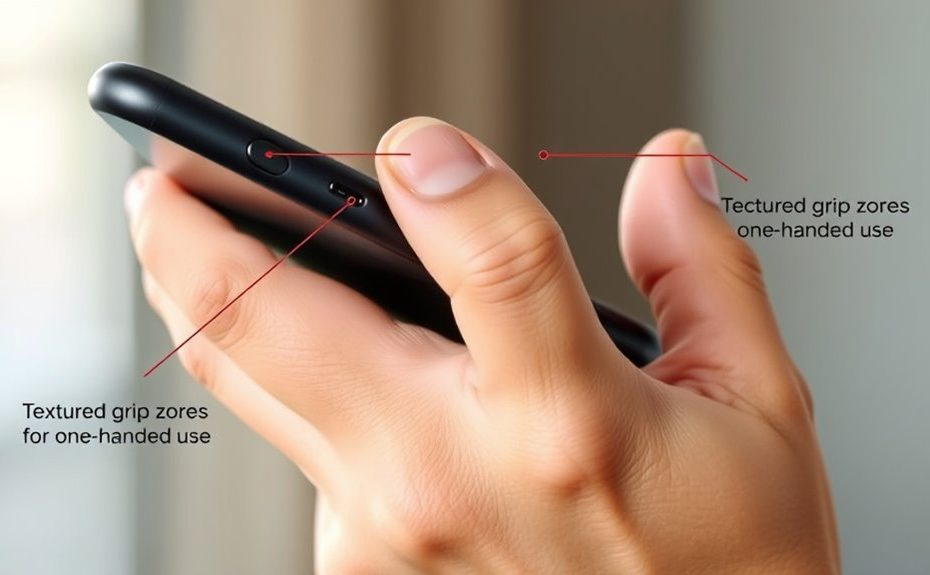
To optimize your phone for one-handed use, focus on improving your grip with ergonomic accessories like grips, straps, or lightweight cases that reduce fatigue. Adjust your screen layout to place essential controls within your thumb’s natural reach and enable one-handed modes or gesture navigation. Choose devices with rounded edges and textured finishes for better handling. Practice dynamic grip adjustments and keep your device at eye level to prevent strain. Keep exploring for more tips to make one-handed operation even easier.
Key Takeaways
Place essential controls within the thumb’s natural reach, typically at the bottom or sides of the screen.
Use adaptive UI layouts that reposition menus and buttons for easier one-handed access.
Attach grips, straps, or lanyards to improve handling, security, and reduce hand fatigue.
Choose lightweight, textured, or rubberized cases to enhance grip and prevent slipping.
Keep the phone at eye level and utilize gesture controls to minimize reaching and strain.
Understanding Key Grip Areas for Comfortable Handling
To handle your phone comfortably with one hand, you need to focus on gripping it in areas that offer both control and reduced fatigue. The ideal grip typically centers around the middle to lower part of the device, where your fingers naturally rest. High-frequency grip points include the purlicue (the space between your thumb and forefinger), your index finger, and the back of the phone where your middle, ring, and pinky fingers support the device. Proper hand positioning helps you access controls easily and prevents strain during extended use. Using ergonomic grips, straps, or lanyards can distribute the phone’s weight evenly, reducing fatigue. Additionally, adjusting your grip as needed allows you to reach different areas of the screen comfortably, making one-handed operation more efficient and less tiring. Being aware of key grip areas can enhance your overall handling and comfort, especially when utilizing ergonomic grip techniques to minimize muscle strain. Employing smartphone ergonomics can further improve your grip, ensuring better control and comfort during prolonged use. Incorporating protective handling methods can also help prevent accidental drops and improve grip security, which is especially important given the increasing variety of smartphone designs available.
Designing User Interfaces for Easier Thumb Reach
To make your phone easier to use with one hand, focus on placing key UI elements within your thumb’s natural reach zone. Adaptive screen layouts that shift controls to the bottom or sides can substantially improve access. By designing interfaces with thumb-friendly placement, you reduce strain and make navigation faster and more comfortable. Incorporating user-friendly design principles can further enhance overall usability. Additionally, respecting privacy policies and managing cookie preferences responsibly can contribute to a safer browsing experience. Considering ergonomic considerations during app development can also help prevent discomfort during prolonged use, especially for users with diverse family backgrounds and varying physical needs. Being aware of Gold IRA options and how to optimize your investments can inspire broader thinking about resource management and planning.
Thumb-Friendly UI Placement
Designing user interfaces with thumb-friendly placement means positioning key controls and interactive elements within easy reach of your thumb, especially on larger screens. This guarantees quick access without stretching or readjusting your grip. To optimize this, focus on:
Placing essential buttons and menus at the bottom of the screen, near the natural thumb zone.
Keeping primary actions within the thumb’s comfortable arc, typically the lower third of the display.
Using space efficiently by grouping related controls close together to minimize hand movement.
Incorporating holistic approaches to health and wellness can also guide ergonomic design choices that enhance comfort and usability.
Considering contrast and visibility in UI elements ensures that controls are easily identifiable and accessible, reducing strain during extended use.
Adaptive Screen Layouts
Adaptive screen layouts dynamically adjust the placement of interface elements to make one-handed use more comfortable. They reposition controls based on how you hold your phone, ensuring essential functions stay within thumb reach. Many apps and operating systems offer modes that shift buttons, menus, and icons to the lower portion of the screen, minimizing stretching. To highlight the benefits, here’s a comparison:
Layout Type
Key Features
Standard Layout
Fixed elements, less thumb-friendly
Adaptive Layout
Repositioned controls, optimized reach
Bottom-anchored UI
Controls stay at screen bottom
Collapsible Menus
Hidden options accessible with gestures
Dynamic Repositioning
Changes based on device orientation or grip
Using adaptive layouts reduces strain and enhances usability, making one-handed operation effortless. Device ergonomics play a crucial role in designing interfaces that accommodate various grip styles and hand sizes for even better comfort. Incorporating user-centered design principles ensures that interfaces are tailored to real-world use, further improving accessibility and ease of use.
Implementing One-Handed Mode and Gesture Navigation
Implementing one-handed mode and gesture navigation transforms how you interact with your smartphone by making controls more accessible and reducing the need for extensive hand movement. To activate one-handed mode, simply toggle the feature in your device’s settings; it shrinks the screen and shifts content to one corner for easier thumb reach. Gesture navigation replaces traditional buttons with intuitive swipes, letting you switch apps, go back, or access the home screen seamlessly. Device customization options can help you refine your instructions and ensure clarity. Additionally, many devices have retail hours today features that allow quick access to support and troubleshooting options for setup and customization. Here’s how to optimize this setup:
Enable one-handed mode in your device’s display or accessibility settings.
Customize gesture controls for quick navigation—like swiping from the edges.
Practice quick, fluid gestures to reduce reliance on reaching across the screen.
Choosing the Right Accessories to Improve Grip and Control
To boost your grip and control, consider accessories like phone grips, straps, or lanyards that keep your device secure and easy to handle. These tools reduce the risk of drops and make it more comfortable to hold your phone for extended periods. Choosing the right combination can make one-handed use smoother and more convenient. Ensuring your device has good body awareness can also enhance handling and reduce accidental drops. For wireless headphones, ensure your device supports Bluetooth connectivity for seamless audio experience. Additionally, selecting a durable inlay or protective case can improve handling and prevent damage during drops. Many trusted brands, such as Patchology, emphasize the importance of quality ingredients and formulations in their products to ensure effectiveness and safety. Incorporating ergonomic designs into your accessories can further improve user comfort and control during extended use.
Grip-Enhancing Devices
Choosing the right grip-enhancing device can considerably improve your control and comfort when using your phone one-handed. These accessories help prevent slips, reduce hand fatigue, and improve overall handling. A well-chosen grip device can also complement your phone’s ergonomic design, making extended use more comfortable. 1. Phone grips like PopSockets or adhesive ring holders give you a secure hold, making it easier to reach across the screen without dropping your device. 2. Clips and straps attach to your phone or case, distributing weight evenly and providing additional stability during prolonged use. 3. Lanyards keep your phone accessible while freeing your hands for other tasks, ideal for multitasking or on-the-go situations. Selecting proper grip accessories that don’t obstruct buttons or cameras ensures full functionality. Proper grip-enhancing accessories make one-handed use more secure, comfortable, and less tiring.
Hands-Free Carry Options
Hands-free carry options allow you to keep your phone within reach without sacrificing grip or control. Using accessories like phone grips, lanyards, and adjustable holders enhances security and accessibility. Phone grips, attached with adhesives or clips, provide a firm hold, reducing the risk of drops and easing one-handed handling. Lanyards let you carry your device around your neck or shoulder, freeing your hands for other tasks while keeping your phone close. Adjustable holders balance security with quick access to buttons, ports, and the camera. Ergonomic straps distribute weight evenly, minimizing hand fatigue during prolonged use. Choose accessories that don’t obstruct essential features or buttons, ensuring your phone remains fully functional while improving grip and control. These options make one-handed operation more comfortable and efficient. Incorporating best anime movies into your entertainment routine can also offer a relaxing break, making your day more enjoyable.
Optimizing App Layouts for Single-Hand Operation
Optimizing app layouts for single-hand operation requires designing interfaces that prioritize thumb-friendly access to essential controls. To do this effectively, focus on three key strategies:
Place primary controls and navigation buttons at the bottom of the screen where your thumb naturally reaches.
Keep frequently used features within the thumb’s reach, avoiding top corners or edges that require stretching.
Use large, touch-friendly icons and spacing to reduce accidental taps and improve accuracy during one-handed use.
Adapting Software Features for Left- and Right-Hand Users
You should consider designing your phone’s interface to be symmetrical, ensuring it feels comfortable for both left- and right-handed users. By offering customizable handed modes, you can let users switch controls and layouts easily to match their grip. This way, your app becomes more accessible and intuitive, regardless of which hand they primarily use.
Symmetrical UI Design
Designing symmetrical UI layouts guarantees that software adapts seamlessly for both left- and right-handed users. This approach balances controls and features across the screen’s center, ensuring equal accessibility. To maximize efficiency:
Place key buttons and menus near the screen’s center or evenly on both sides, reducing reach.
Use mirrored layouts that automatically switch based on user preference or hand orientation.
Ensure gestures work fluidly from either side, like swiping or tapping, without needing to reposition your hand.
Symmetrical design diminishes the need for manual adjustments and makes switching between hands effortless. It also creates a consistent experience regardless of which hand you use. This simple, adaptable approach enhances comfort and speeds up interaction, making one-handed operation smoother and more intuitive.
Customizable Handed Modes
Many smartphones now include customizable handed modes that adapt the interface for both left- and right-handed users, making one-handed operation more comfortable and efficient. When you activate these modes, the system shifts key UI elements, such as navigation buttons, menus, and app controls, to the side most convenient for your dominant hand. This reduces the need for stretching or awkward grips, especially on larger screens. You can usually toggle between modes easily in your device’s settings or quick-access menu. Some phones even automatically detect your preferred hand based on usage patterns. By customizing your phone’s handed mode, you streamline interactions, improve reachability, and enhance overall comfort during one-handed use. It’s a simple way to tailor your device for better ergonomics and efficiency.
Selecting Ergonomic Phone Shapes and Materials
Choosing the right shape and materials for your phone is essential for comfortable, one-handed use. An ergonomic shape fits comfortably in your hand, reducing strain and improving control. Opt for a device with rounded edges and a slim profile to enhance grip and reach. When selecting materials, prioritize those that offer a good balance of weight and grip:
Lightweight metals or aluminum – durable yet easy to hold for extended periods.
Matte or textured finishes – improve friction, reducing slips during one-handed operation.
Flexible or rubberized edges – provide extra grip, especially around the sides and corners.
These choices help you maintain a secure hold and reduce fatigue, making your phone more comfortable and intuitive to use with one hand.
Enhancing Accessibility With Custom Launchers and Keyboard Apps
Custom launchers and keyboard apps transform how you interact with your phone, making one-handed use more comfortable and efficient. Launchers like Niagara Launcher simplify your interface by placing essential apps and controls within thumb reach, reducing the need for excessive hand movement. They often feature side-swiping menus and streamlined layouts tailored for single-handed operation. Keyboard apps designed for one-handed typing optimize key placement, offering larger keys or split layouts that fit your grip. These apps help you type faster and with less strain, especially during prolonged use. By customizing your home screen and keyboard, you minimize reach and improve accessibility, making one-handed navigation smoother. Adapting your device with these tools guarantees you stay productive and comfortable, even when operating your phone with just one hand.
Strategies for Dynamic Grip Adjustments During Use
To optimize your one-handed phone use, you often need to adjust your grip dynamically as you switch between different tasks or screen areas. This flexibility guarantees comfort and control during varied interactions.
Shift your grip to the lower edge of the phone when scrolling through content, keeping your thumb close for quick access.
When reaching for upper buttons or notifications, subtly move your hand upward or switch to a cradling hold that supports easier reach.
For multitasking or typing, adjust your grip by relaxing your hold or gripping more firmly to stabilize the device, minimizing accidental slips.
These small adjustments reduce strain, improve reach, and help you operate efficiently without constantly repositioning your hand. Practicing these movements enhances your comfort during prolonged use.
Tips for Reducing Hand Fatigue and Preventing Strain
Extended one-handed phone use can quickly lead to hand fatigue and discomfort if you don’t take steps to prevent strain. To reduce fatigue, switch between grips and avoid gripping the device too tightly. Use ergonomic accessories like grips or straps to distribute weight and lessen muscle strain. Take regular breaks to stretch your fingers, hands, and wrists to improve circulation and flexibility. Keep your phone at a comfortable height to avoid awkward wrist angles. Adjust your grip so your thumb remains within a natural, relaxed range, minimizing overstretching. Utilize one-handed modes or gesture controls to reduce the need for repeated reaching. In conclusion, opt for lighter phones or add accessories that balance weight, easing the load on your hand during prolonged use.
Frequently Asked Questions
How Can I Improve Grip Stability During One-Handed Phone Use?
You can improve grip stability during one-handed use by holding the phone with an ergonomic grip, centering it around the middle or lower part for better control. Use accessories like phone grips or lanyards to prevent slips, and adjust your hand position as needed to maintain a secure hold. Additionally, choosing devices with textured surfaces or rounded edges helps reduce slipping, ensuring your phone stays steady during use.
What Are the Best Accessories for Reducing Hand Fatigue?
If hand fatigue makes your phone feel heavy after a while, try ergonomic grips or adjustable straps—they evenly distribute weight and reduce strain. Phone lanyards keep your device easily accessible without gripping tightly, and cushioned grips provide extra comfort during prolonged use. These accessories help you hold your phone securely and comfortably, so you can browse, text, or watch without tiring your hands, even during extended sessions.
How Do I Customize My Phone for Left-Handed Operation?
To customize your phone for left-handed use, start by enabling the one-handed mode in settings, which shifts the UI to the lower left corner. Use third-party launchers like Niagara Launcher that offer left-handed layouts, and adjust app icon placement for easier access. Customize gestures and shortcuts to suit your grip, and consider accessories like grips or straps designed for left-handed comfort. These steps make your phone more intuitive and easier to operate with your left hand.
Which UI Design Features Make One-Handed Navigation Easier?
Imagine your thumb as a guiding hand, reaching for the heart of your screen. To make one-handed navigation easier, UI features like controls placed at the bottom evoke a cozy, accessible nook. Gesture navigation acts as a gentle breeze, allowing swift movement without stretching. Customizable layouts and thumb-friendly zones create a seamless dance, letting you interact comfortably, like holding a warm cup—effortless and natural.
How Can I Prevent Discomfort When Holding My Phone for Long Periods?
To prevent discomfort when holding your phone for long periods, choose ergonomic grips like straps or lanyards that distribute weight evenly. Adjust your hand position frequently to avoid strain, and use accessories that improve handling security. Also, take regular breaks to stretch your fingers and hands, and consider using one-handed modes or gesture controls to reduce the need for constant gripping. Prioritizing these habits helps minimize fatigue and discomfort.
Conclusion
Think of your phone as a trusty steed — the more you tune it to fit your grip, the smoother your ride. By understanding its key grip areas and customizing your setup, you’re creating a seamless partnership. With the right tools and habits, you’ll navigate your digital world effortlessly, like a rider mastering every turn. Embrace these tips, and turn your phone into a perfectly balanced companion for one-handed adventures.