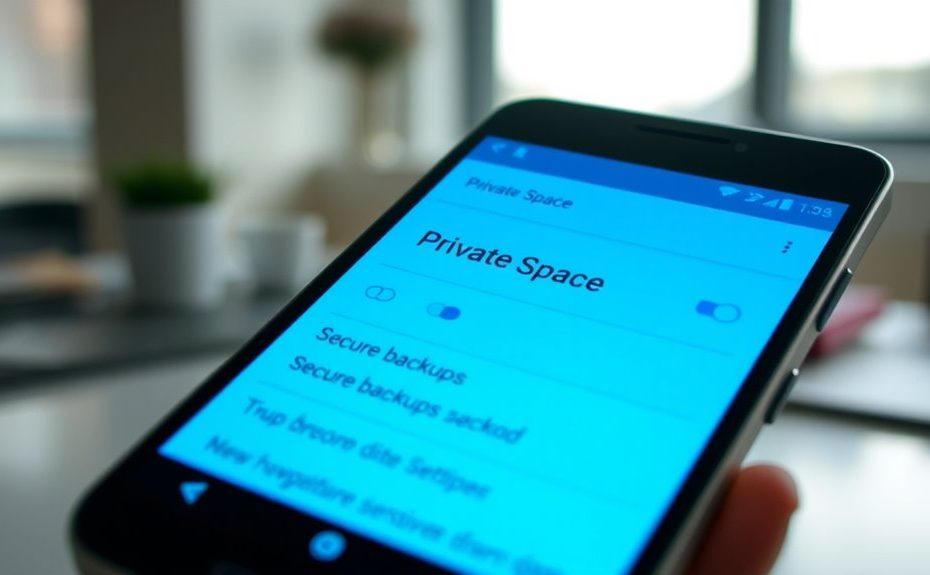
To configure Android’s Private Space and secure backups, start by ensuring your device runs Android 15+ with at least 6 GB RAM. Navigate to Settings > Security & privacy > Private Space to set it up, choosing a strong authentication method like a PIN or biometric. Install your apps within Private Space and enable encryption for sensitive data. For backups, go to Settings > Google > Backup, and select secure options to protect your information. Keep your device updated for the most effective security and explore further steps for complete privacy.
Key Takeaways
Enable Private Space in Settings > Security & privacy, then authenticate and set up a lock method like PIN, password, or biometric.
Install and manage apps within Private Space, ensuring data is isolated and protected from the main profile.
Activate secure backups via Settings > Google > Backup, including Private Space data, with strong account credentials.
Configure device policies to control access, enable or disable Private Space, and automate data removal upon policy changes.
Regularly update device firmware and security settings, troubleshoot issues by restarting or reconfiguring Private Space as needed.
Understanding the Purpose and Benefits of Private Space on Android
Understanding the purpose and benefits of Private Space on Android is essential for anyone looking to keep sensitive data secure. Private Space creates a separate, isolated environment on your device, ensuring that apps and data remain protected from unauthorized access. This feature is ideal for handling confidential information, such as work documents, personal banking apps, or private communications. By isolating sensitive data, Private Space prevents accidental sharing or exposure through app permissions or device access. It also adds an extra layer of security, as Private Space can be hidden or locked, making it harder for others to find or access. Additionally, security features like encryption and biometric locks further enhances protection. For example, many devices incorporate data encryption to safeguard information stored within Private Space. Implementing access controls ensures that only authorized users can enter this secure environment. Furthermore, privacy management tools allow users to customize their privacy settings and control what information is accessible within Private Space. Overall, it helps you control your privacy, maintain data separation, and manage sensitive information confidently—all within your Android device.
Checking Device Compatibility and Prerequisites for Activation
To activate Private Space, you need a device running Android 15 or higher, with at least 6 GB of RAM. Make sure your device isn’t managed by a corporate policy that restricts this feature. Confirm your device meets these specifications before proceeding with setup. Additionally, verifying device security features can help ensure a smooth activation process. Checking device compatibility can also prevent potential issues during activation. Ensuring your device has security system integration capabilities can further enhance your experience. Performing a device security check can identify any vulnerabilities that might interfere with Private Space activation, especially related to device security settings.
Android Version Requirements
Make sure your device meets the Android version requirements before attempting to activate Private Space. You need at least Android 15 to access this feature, as it was introduced in that release. Confirm your device is running the latest Android version by checking Settings > About phone > Software update. Additionally, your device should have a minimum of 6 GB of RAM to support Private Space functionality. Without these requirements, the feature won’t be available. Staying informed about latest technological advancements can help you optimize your device’s security features and ensure compatibility.
Hardware Specifications Needed
Before you can activate Private Space, it’s important to verify your device’s hardware capabilities. Your device must run Android 15 or higher, as this feature isn’t available on earlier versions. Additionally, your device needs at least 6 GB of RAM to support Private Space smoothly. Check your device specifications in Settings > About Phone > Hardware to confirm these requirements. Some devices may have hardware restrictions that prevent activation, especially fully managed or supervised devices. Ensure your device has sufficient storage space for app installations and data separation. Keep your firmware updated to the latest version, as updates may improve compatibility and security. Meeting these hardware prerequisites guarantees a seamless setup and ideal Private Space performance. Device compatibility is crucial for ensuring the feature functions correctly and securely. User-friendly interfaces enhance the overall setup experience and help you navigate the activation process more easily. Additionally, understanding sound healing science can inform how you use your device’s audio settings to optimize your Private Space environment. Moreover, staying informed about evolving digital literacy concepts can help you better manage your device’s features and security settings. Finally, being aware of hardware specifications can assist in troubleshooting potential issues during setup.
Device Management Restrictions
Checking device management restrictions is essential to guarantee your device can support Private Space. First, confirm your device runs Android 15 or higher, as the feature isn’t available on older versions. Next, verify your device has at least 6 GB of RAM; insufficient memory can prevent activation. Additionally, confirm that your device isn’t fully managed or signed in with a supervised account, as these configurations block Private Space setup. Device compatibility may also influence perceptions of your device’s compatibility, especially if cultural beliefs affect your confidence in technology. To ensure smooth activation, it is also important to verify that your device has the latest security updates installed. If your device meets these criteria, you can proceed confidently. Otherwise, you might need a device upgrade or consult your IT administrator for management restrictions. Ensuring these prerequisites helps you activate and use Private Space seamlessly, as understanding device management restrictions is crucial for a successful setup. For optimal performance, it is advisable to stay informed about security update requirements to maintain compatibility and security. Regularly checking for software updates can help avoid potential issues with device compatibility and security.
Accessing and Initiating Private Space Setup
To access and initiate the Private Space setup on your Android device, start by exploring to Settings > Security & privacy > Private space menu. Once there, you’ll be prompted to authenticate using your current lock screen method or set up a new one. You can choose from pattern, PIN, or password, and confirm your choice. After authentication, you may be asked to sign in with a different Google Account for better data separation. Implementing efficient general ledger coding can also help manage data securely within your Private Space for improved financial oversight. Additionally, understanding security features within the device settings to maximize data protection. It is important to also review privacy and cookie policies to be aware of how your data is handled and protected. Follow prompts to complete setup.
Choosing and Configuring Authentication Methods for Secure Access
When configuring authentication methods for secure access to Private Space, you have multiple options to guarantee your data remains protected. You can choose from various lock types, such as pattern, PIN, or password, to suit your security preferences. Additionally, you can set up biometric options like fingerprint or face recognition for quick access. To enhance security, consider enabling two-factor authentication if available.
Select your preferred lock type in Settings > Security & privacy > Private space
Enable biometric options for faster access
Use a strong, unique password or PIN to prevent unauthorized entry
Properly configuring these methods ensures only you can access your Private Space, maintaining data integrity and privacy. Choose the options that balance convenience and security for your needs.
Managing Apps and Data Within Private Space
Managing apps and data within Private Space involves understanding how to install, organize, and control access to your apps separately from your main profile. You can add new apps via the Plus (+) Install option or through Google Play Store within Private Space. Once installed, you can manage apps directly by tapping the Settings icon in the upper right corner of Private Space. Apps in this space are isolated, meaning they can’t communicate with or share data with apps in your main profile. Your private data, including files, contacts, and calendars, remains separate and inaccessible from your main space unless you unlock Private Space. This separation guarantees your sensitive information stays protected, and your app organization remains clear and controlled within each environment.
Implementing Policies and Administrative Controls for Business Use
Implementing policies and administrative controls for business use guarantees that organizations can securely manage and enforce the use of Private Space across their devices. You can control access, set restrictions, and ensure compliance with company standards. To do this effectively, consider these key actions:
Configure device management platforms to enable or disable Private Space with “Allowed” or “Disallowed” policies.
Assign policies to specific device groups, including COPE devices, for consistent enforcement.
Automatically remove Private Space features and data when policies change or devices are decommissioned.
These controls help prevent unauthorized use, protect sensitive information, and maintain compliance while providing flexibility for your users. Proper policy implementation guarantees a secure, manageable environment tailored to your organization’s needs.
Securing Private Space With Encryption and Backup Options
To keep your private space secure, you should encrypt your sensitive data and enable secure backups. Encryption protects your information from unauthorized access, even if your device is lost or stolen. Setting up reliable backup options guarantees you can restore your private data safely if needed.
Encrypt Private Data
Are you aware of how encryption enhances the security of your Private Space on Android? By encrypting your private data, you assure that even if someone gains physical access, they can’t read your sensitive information. Encryption transforms your data into an unreadable format that only you can decrypt with your key. This process protects your photos, messages, and app data from unauthorized access. To strengthen your privacy, consider these points:
Data remains protected even if the device is lost or stolen
Encryption prevents malicious apps from intercepting sensitive information
It complies with security policies for corporate devices and sensitive environments
Enabling encryption is essential for maintaining control over your private data, especially in a dedicated Private Space. It’s a critical step to safeguard your information from potential threats.
Enable Secure Backups
Have you considered how secure backups can protect your private data on Android? Enabling secure backups guarantees your private space data is safely stored and recoverable if needed. To activate this feature, go to Settings > Google > Backup. Turn on “Back up to Google Drive” and verify that your private space is included in the backup settings. Use a strong Google account password and enable two-factor authentication for added security. This way, even if your device is lost or reset, your sensitive apps, files, and settings within private space remain protected and restorable. Remember, secure backups complement encryption, providing an extra layer of data security. Regularly verify backup status and ensure all important private space data is included for peace of mind.
Configuring Backup Solutions for Private Space Data
Since private space data is isolated from the main profile, configuring effective backup solutions guarantees your sensitive information stays protected and recoverable. You should guarantee backups include private space data, either through device-level backups or cloud services supporting multiple profiles. Key considerations include:
Using enterprise management tools that support private space backups
Enabling automatic backups for both main and private profiles via device settings
Selecting cloud providers that allow selective data restoration for private space content
Managing Visibility and Hidden State for Privacy and Security
Managing visibility and the hidden state of private space is key to maintaining your privacy and security. When your private space is locked, apps and notifications stay hidden from the launcher, recent apps, system settings, and the All Apps menu. You can toggle the option to hide the private space entirely when it’s locked, preventing accidental access. To access your private space while hidden, use the device search bar and type “private space.” The launcher offers an entry point to access it, but only when not hidden. This setup ensures your sensitive apps and data stay concealed during inactive periods, reducing the risk of unauthorized access. Proper management of visibility keeps your private space secure and discreet, aligning with your privacy needs.
Troubleshooting Common Issues and Best Practices for Maintenance
Troubleshooting common issues with Android’s Private Space involves identifying and resolving problems that may prevent smooth operation or compromise security. To keep things running smoothly, make certain your device is updated regularly, as updates often fix bugs and security gaps. Check your lock screen settings if you experience access issues, and verify your device’s compatibility with Android 15. If Private Space isn’t appearing or working correctly, try restarting your device or reconfiguring the space. Also, review your device management policies if certain features are disabled.
Confirm device compatibility and update Android
Reset or reconfigure Private Space if issues persist
Review device management policies for restrictions
Frequently Asked Questions
Can Private Space Be Used Simultaneously With Other User Profiles?
No, you can’t use Private Space simultaneously with other user profiles on your Android device. Private Space creates an isolated environment for sensitive apps and data, and only one instance can exist for your main user. When Private Space is active, it remains separate from other profiles, so you can’t access both at the same time. To switch between them, you’ll need to open or hide Private Space as needed.
Is It Possible to Transfer Data From Main Profile to Private Space?
Yes, you can transfer data from your main profile to private space, but it requires manual effort. You need to move files, contacts, or app data explicitly, as private space isolates data by design. Use file managers or app-specific options to copy content into the private space. Keep in mind, apps in private space can’t access data from your main profile unless you move or share it explicitly within the private environment.
How Does Private Space Impact Device Performance and Battery Life?
You’ll find that Private Space can slightly impact your device’s performance and battery life, especially if you run multiple apps simultaneously. Studies show that running isolated profiles can increase background activity, leading to up to 10% higher battery drain. When Private Space is active, your device works harder to manage separate app environments, which may cause minor lag or faster battery consumption, but it generally remains efficient on devices with sufficient hardware.
Can Private Space Be Encrypted Separately From the Main Device?
Yes, private space is encrypted separately from the main device. When you set up private space, it creates an isolated environment with its own encryption layer, ensuring your sensitive apps and data stay protected. This separate encryption enhances security, making it harder for unauthorized access. You can confidently use private space knowing your data remains encrypted and secure, even if the main device’s encryption is compromised.
Are There Limitations on App Types or Functionalities Within Private Space?
Like a fortress guarding its treasures, private space has limitations on app types and functionalities. You can’t install or run apps that require access to main profile data, like contacts or SMS. Some system apps or services may also be restricted. You’re mainly limited to apps that operate independently, so complex apps needing deep integration or communication with main space won’t work within private space, keeping your sensitive data isolated.
Conclusion
By thoughtfully setting up your private space, you create a cozy, secure nook within your Android device—a hidden sanctuary where your data rests peacefully. With the right protections in place, your personal world stays private, shielded from prying eyes. Just like a well-guarded treasure chest, your private space holds your valuable memories and info safely tucked away, allowing you to navigate your digital life confidently, knowing your privacy is beautifully preserved behind a gentle, unseen curtain.