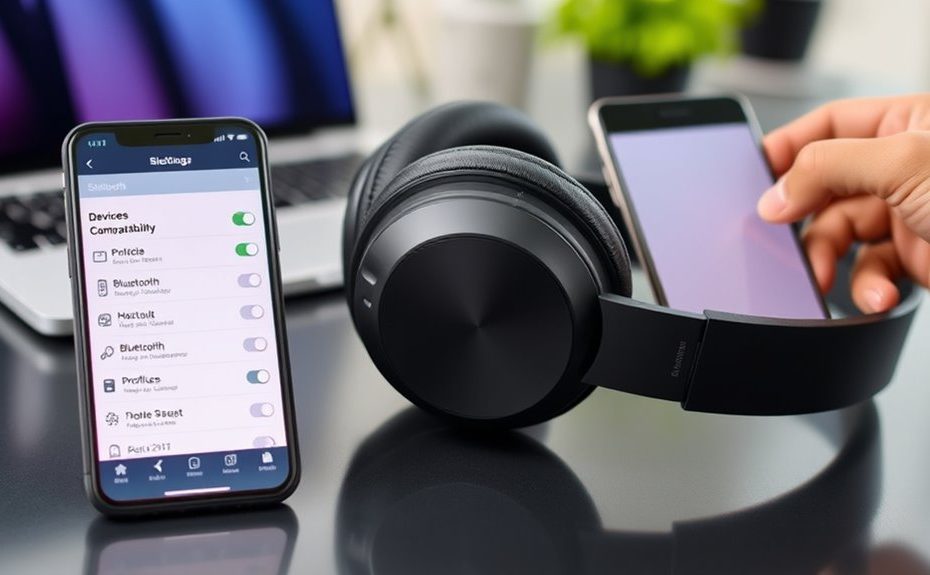
To fix Bluetooth multipoint conflicts, first confirm your headphones support multiple devices and update their firmware. Remove old pairings, reset your headphones, and re-pair them with your devices properly. Limit the number of active connections and use headset controls to switch calls easily. Restart your devices and Bluetooth connections regularly to clear glitches. Adjust settings for device prioritization if available. Following these steps can smooth your experience—continue to learn more about optimizing your headphones.
Key Takeaways
Reset and re-pair all devices to clear existing conflicts and establish fresh connections.
Update headphone firmware and device drivers to ensure compatibility with multipoint features.
Disable Bluetooth on unused devices to prevent connection interference with your headphones.
Limit active device connections to supported numbers, typically two, to maintain stable pairing.
Use headset controls to manually switch between devices and troubleshoot connection issues.
Confirm Device Compatibility and Bluetooth Profiles
To guarantee your Bluetooth multipoint connection works smoothly, you first need to confirm that both your headset and connected devices support the necessary Bluetooth profiles. Multipoint relies on profiles like A2DP for high-quality audio streaming and HFP or HSP for calls and hands-free communication. Check your device specifications or user manuals to verify support for these profiles. If either device lacks support, the connection may be unstable or limited to single-device use. Ensuring compatibility prevents common issues like dropped connections or failed call switching. You can also verify profiles through your device settings or Bluetooth management apps. Confirming support upfront saves you time troubleshooting later and provides a stable foundation for seamless multipoint functionality. Additionally, referring to profile support documentation can help clarify which profiles are available on your devices. Recognizing Bluetooth profile compatibility is essential for optimal performance and avoiding connection conflicts. Being aware of device profile support can help you make informed decisions when selecting headphones or connected gadgets. Moreover, understanding the impact of profile limitations can guide you in resolving potential connectivity problems efficiently.
Update Firmware and Device Drivers
Updating firmware on your headset and device drivers on your connected gadgets can considerably improve Bluetooth multipoint performance. Firmware updates often include bug fixes, security patches, and compatibility enhancements critical for stable connections. Regularly updating these components helps resolve known issues, enhances Bluetooth profile support, and ensures smoother device switching. To start, visit the manufacturer’s website or app for your headset and check for the latest firmware. For your gadgets, use system update tools or device management software to update drivers. Keeping firmware and drivers current is a simple yet effective step to minimize multipoint conflicts and improve overall connection reliability. Additionally, understanding Bluetooth protocols can help resolve complex connection issues. Being aware of compatibility issues between devices can help prevent conflicts before they occur. Staying informed about device interoperability standards can further optimize your Bluetooth experience. Incorporating regular maintenance of your devices can also help sustain optimal Bluetooth performance over time. Ensuring your devices utilize quality components can additionally reduce the likelihood of connection problems.
Re-Pair Your Headphones and Devices Properly
To prevent connection issues, start by removing any old pairings from your devices. Then, follow the correct pairing steps to guarantee a clean connection between your headphones and each device. Additionally, resetting your headset can help clear any lingering settings that might cause conflicts. Ensuring your devices support high refresh rates can also improve overall performance and reduce potential Bluetooth conflicts. Proper wall organization and aesthetic solutions can also contribute to a more streamlined setup area, minimizing interference. Utilizing effective apps for device management can further streamline the troubleshooting process and ensure smoother connections. Being aware of your privacy settings and managing them appropriately can also prevent unexpected connection disruptions. When tuning your devices, consider compatibility with features like Kia Tuning modifications to optimize performance and stability.
Remove Old Pairings
Removing old Bluetooth pairings is a crucial step to guarantee your headphones connect smoothly and function correctly with your devices. Old pairings can cause conflicts, connection drops, or miscommunications during device switching. To clear these issues, access your device’s Bluetooth settings and delete outdated or unused connections. Doing so prevents automatic reconnections to incorrect devices and reduces interference.
Here’s what to do:
Open Bluetooth settings on your device
Locate your headphones in the list of paired devices
Select the headphones and choose “Forget” or “Remove”
Turn off Bluetooth, then turn it back on
Re-pair your headphones with the correct devices following proper procedures
Removing old pairings resets your connection history, ensuring a clean slate for better performance and fewer conflicts.
Follow Correct Pairing Steps
Properly re-pairing your headphones and devices guarantees a stable, interference-free connection, especially after clearing old pairings. To do this, turn off Bluetooth on all devices involved. Then, reset your headphones to pairing mode—usually by holding a specific button until a light flashes. On your device, remove any existing Bluetooth connections for the headphones to prevent conflicts. Next, pair the headphones again by selecting them from your device’s Bluetooth menu. Follow any prompts to complete the pairing process, ensuring both devices support the necessary Bluetooth profiles like A2DP and HFP. Verify that your headphones connect seamlessly to both devices. Proper pairing minimizes conflicts and lays a solid foundation for reliable multipoint performance. Always follow manufacturer instructions for specific reset and pairing procedures. Digital literacy plays a crucial role in understanding and troubleshooting connectivity issues effectively. Additionally, understanding Bluetooth profiles helps ensure compatibility and device interoperability during pairing.
Reset Headset Properly
If you’re experiencing persistent Bluetooth multipoint issues, resetting and re-pairing your headset with your devices can often resolve conflicts. Start by turning off your headset and removing all Bluetooth connections from your devices. Then, follow these steps:
Reset your headset to factory settings, usually through a button combination or menu.
Clear Bluetooth pairings on all connected devices.
Power off and restart your devices before pairing again.
Enable pairing mode on your headset and initiate pairing on your devices.
Reconnect each device one at a time, ensuring the correct profiles are supported.
Remember that understanding Bluetooth Profiles is key to ensuring seamless device communication. Being aware of electric power capabilities can also help you select the best devices for your needs. Additionally, verifying that your devices support multi-device pairing can prevent future conflicts.
This process refreshes the connection, clears glitches, and ensures proper communication between your headset and devices. Proper re-pairing can fix multipoint conflicts and restore seamless audio switching. Moreover, familiarizing yourself with pairing protocols can aid in troubleshooting connection issues more effectively.
Limit Active Connections to Supported Devices
Limiting the number of active Bluetooth connections to devices supported by your headset is crucial for maintaining stable and reliable multipoint performance. Most headsets support two devices, but connecting more can overload the system, causing drops or glitches. To prevent this, only pair devices you actively use. Disable Bluetooth on unused gadgets or remove them from your headset’s pairing list. Check your headset’s specifications to confirm the supported number of connections. Limiting connections minimizes conflicts and ensures smoother switching between devices. Additionally, understanding device compatibility can help you optimize your connection strategy and prevent unexpected issues. Recognizing the trustworthiness of the brand can also ensure you select reliable devices that perform well with your headset. Being aware of connection limits can further improve your experience and reduce potential disruptions. Moreover, regularly updating your headset’s firmware can help maintain optimal connection stability and resolve known issues.
Use Headset Controls to Manage Calls Effectively
Using your headset controls effectively can prevent call conflicts and guarantee smooth device management. By mastering these controls, you can switch, hold, or end calls seamlessly across multiple devices. This helps avoid accidental disconnections or missed calls, especially when managing multiple sources.
Mastering headset controls ensures smooth calls and prevents conflicts across multiple devices.
You should familiarize yourself with common button functions, such as:
Pressing the multi-function button to answer or end calls
Holding the button to reject incoming calls
Double-pressing to switch between connected devices
Using dedicated call controls for holding or resuming calls
Adjusting volume directly through headset buttons for better call clarity
Practicing these commands ensures you stay in control during calls, reducing confusion and improving your overall experience. Proper use of headset controls helps you manage calls efficiently, even amid multipoint conflicts.
Reset and Restart Bluetooth Connections Regularly
Regularly reboot your devices to refresh Bluetooth connections and clear potential glitches. If you’re experiencing persistent conflicts, removing all paired devices and re-pairing them can often resolve issues. These simple steps help maintain a stable multipoint connection and prevent dropouts.
Reboot Devices Periodically
Rebooting your devices periodically can considerably improve Bluetooth multipoint performance by clearing temporary glitches and resetting connections. This simple step helps prevent connection drops and audio issues caused by lingering errors or software hiccups. To effectively reboot:
Turn off your headphones and devices, then restart them.
Wait a few seconds before powering everything back on.
Reconnect devices to ensure a fresh pairing.
Check for firmware updates during reboot to enhance compatibility.
Repeat regularly, especially after updates or connectivity problems.
This routine refreshes Bluetooth stacks, clears memory leaks, and ensures devices communicate smoothly. It’s a quick way to maintain stable connections, prevent conflicts, and improve overall multipoint functionality without complicated troubleshooting. Regular reboots keep your headset ready for seamless multitasking.
Clear Paired Device List
Clearing your paired device list can resolve many Bluetooth multipoint conflicts by eliminating outdated or conflicting connections. When you regularly reset your device’s pairing list, you remove devices that no longer connect properly or cause interference. This process guarantees only your current devices are stored, reducing the chance of connection drops or profile mismatches. To do this, go into your Bluetooth settings, forget all paired devices, and then re-pair your headphones with your primary devices. This refreshes the Bluetooth cache and clears any lingering conflicts. Re-establishing fresh connections often improves stability and compatibility, especially if you experience frequent disconnections or audio glitches. Make it a habit to clear your paired device list periodically, especially after firmware updates or device changes, to maintain seamless multipoint performance.
Adjust Settings for Prioritizing Devices and Calls
To guarantee your Bluetooth headset effectively manages multiple devices, you need to adjust its settings to prioritize calls and audio sources. This helps prevent conflicts and ensures the right device gets attention when needed. You can often set priority levels directly on your headset or through connected device settings. For example, prioritize your phone over media playback or notifications. Check if your device allows you to:
Prioritize calls over media to ensure seamless Bluetooth device management.
Set call or media priority levels
Enable automatic switching for incoming calls
Disable notifications from lower-priority sources
Assign specific devices as primary or secondary
Customize auto-reconnection preferences
Adjust these settings to match your workflow, ensuring calls and important audio take precedence. Proper prioritization streamlines switching and reduces disruptions, making your multipoint experience smoother and more reliable.
Frequently Asked Questions
How Do I Identify if My Device Supports Bluetooth Multipoint?
You can check if your device supports Bluetooth multipoint by reviewing its specifications, usually found in the user manual or product details. Look for terms like “multipoint,” “multi-device connection,” or “multi-point pairing.” Visit the manufacturer’s website or contact customer support for confirmation. Additionally, explore your device’s Bluetooth settings or app; if options to connect multiple devices simultaneously appear, your device likely supports Bluetooth multipoint.
Can Firmware Updates Fix Persistent Bluetooth Connection Issues?
Firmware updates are like a shot of adrenaline for your devices, often fixing stubborn Bluetooth connection issues. You should definitely keep your headset and connected devices updated because updates patch bugs, improve compatibility, and enhance stability. If you’re experiencing persistent problems, updating firmware can act as a reset button, revitalizing your connection. Regular updates guarantee your tech stays in sync, reducing dropout frustrations and keeping your audio experience smooth as silk.
What Is the Best Way to Reset Headphone Settings for Troubleshooting?
To reset your headphones for troubleshooting, start by turning them off. Then, locate the reset button or follow the manufacturer’s specific reset procedure, which often involves pressing and holding certain buttons simultaneously for a few seconds. This clears any temporary settings or glitches. After resetting, re-pair your headphones with your devices and test their functionality. Regular resets can help resolve connectivity issues and improve overall performance.
How Do I Manually Prioritize Devices During Simultaneous Connections?
Think of your devices as a busy highway intersection—you need to direct traffic smoothly. To manually prioritize devices during simultaneous connections, use your headset’s controls to select or hold calls on specific devices. Many headsets have dedicated buttons for switching or prioritizing sources. Regularly check your device’s manual, keep firmware updated, and practice switching to make your audio experience as seamless as a well-orchestrated symphony.
Why Do My Headphones Disconnect Randomly During Calls?
Your headphones disconnect randomly during calls because of compatibility issues, firmware glitches, or interference. Make sure both your headphones and devices support the necessary Bluetooth profiles like A2DP and HFP. Keep firmware and drivers updated, and reset your connections by removing and re-pairing the devices. Limit the number of connected devices if your headphones support only two. Also, avoid interference from other wireless devices to maintain a stable connection during calls.
Conclusion
By confirming device compatibility, updating firmware, re-pairing devices, limiting active connections, managing calls with headset controls, resetting connections regularly, and adjusting settings thoughtfully, you can resolve Bluetooth multipoint conflicts effectively. These steps help you streamline your listening experience, reduce interruptions, and enjoy seamless device switching. Stay proactive, stay patient, and stay connected. With these simple actions, you’ll enjoy hassle-free listening and effortless device management every time.