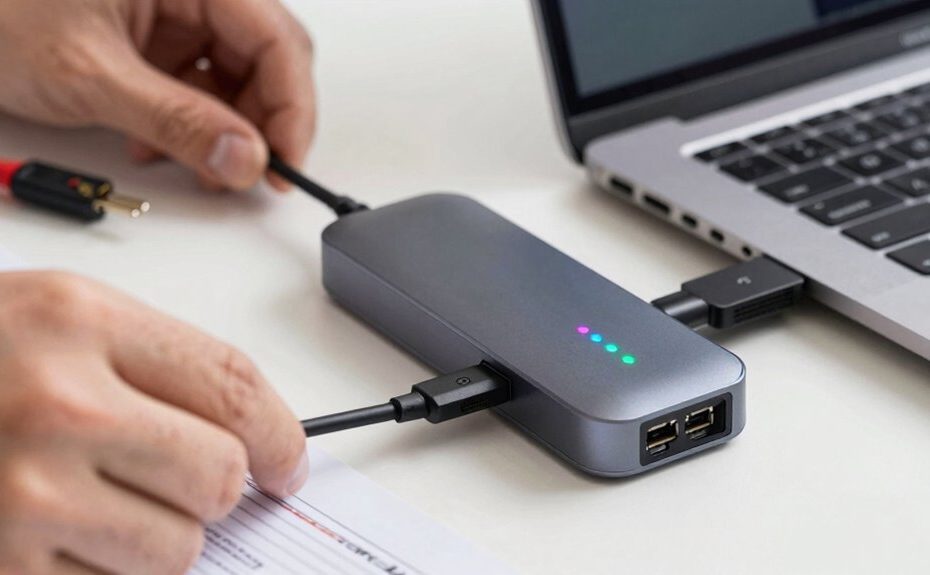
To troubleshoot USB-C dock problems, start by making sure the dock is securely plugged into your computer and try reconnecting it or switching ports if recognition issues occur. Check your device’s compatibility, update drivers and firmware, and restart your system to refresh connections. Test devices individually and on another computer if possible. Make sure wireless charging, Bluetooth, or other features are enabled and working correctly. Following these steps will help you identify the root cause and guarantee a smooth connection.
Key Takeaways
Confirm the dock is securely connected and recognized by the computer, trying different ports if necessary.
Restart the computer to reset device detection and resolve temporary connectivity issues.
Update firmware, drivers, and system software to ensure compatibility and fix known bugs.
Test the dock on another computer to determine if the issue is hardware-related.
Disconnect all devices, then reconnect them individually to identify any problematic hardware.
Using a USB-C dock can greatly simplify connecting multiple devices to your computer, but when issues arise, troubleshooting becomes essential. If you notice that your devices aren’t connecting properly, or certain features like wireless charging or Bluetooth connectivity aren’t working as expected, it’s time to investigate. First, ensure that your dock is properly plugged into your computer’s USB-C port. Sometimes, a loose connection can cause devices to malfunction or not be recognized at all. Disconnect and reconnect the dock, making sure it’s seated firmly. Also, check if your computer recognizes the dock in device manager or system preferences. If it doesn’t, try connecting it to a different port or restarting your computer.
Ensure your USB-C dock is securely connected and recognized by your computer to prevent device malfunction.
Wireless charging issues are common with some USB-C docks that support this feature. If your device isn’t charging wirelessly, verify that the dock supports wireless charging and that you’re placing your device correctly on the charging pad. Sometimes, debris or misalignment can prevent charging from working. Also, check if your device’s wireless charging feature is enabled and compatible with the dock. If charging still doesn’t work, try disconnecting and reconnecting the dock, or test with another device to determine if the problem lies with the dock or your device.
Bluetooth connectivity problems are another frequent concern. If your Bluetooth devices aren’t connecting to your computer through the dock, first verify that Bluetooth is enabled on your system. Ensure that your Bluetooth device is in pairing mode and within range. Sometimes, Bluetooth issues stem from interference or outdated drivers. Update your Bluetooth drivers and your system’s firmware if available. Turn Bluetooth off and on again, or try removing and re-pairing the device. If your dock has a dedicated Bluetooth module, confirm that it’s functioning correctly and that there are no conflicts with other wireless signals. Additionally, understanding content formats can help you better troubleshoot compatibility issues with different devices. Being aware of wireless standards can further assist in diagnosing issues related to device communication protocols.
In addition to these specific features, general troubleshooting involves checking for software updates. Manufacturers often release firmware updates for docks that improve compatibility and fix bugs. Visit the manufacturer’s website to download and install the latest updates. Also, check your operating system for updates, as these can resolve underlying connectivity issues. Updating electric bike firmware or drivers can sometimes resolve compatibility problems with new hardware. It’s also helpful to review device specifications to ensure your hardware supports the features you’re attempting to use. Remember that understanding USB-C standards can assist in diagnosing connection issues related to port compatibility. Disconnect all devices, restart your computer, and reconnect the dock one device at a time, testing each connection. This method can help identify if a specific device or port is causing the issue.
Finally, if none of these steps work, consider testing the dock on another computer. This can help determine whether the problem is with the dock itself or your computer’s configuration. Troubleshooting may seem tedious, but systematically checking each element ensures you identify and resolve the root cause, restoring full functionality to your USB-C dock.
Frequently Asked Questions
Can a Damaged USB-C Port Affect Dock Performance?
Yes, a damaged USB-C port can definitely affect dock performance. Port damage, such as bent pins or physical cracks, can lead to poor connections or complete hardware failure. When the port isn’t functioning properly, your dock might experience intermittent connectivity issues, slow data transfer, or power problems. Inspect the port carefully, and if you notice damage, replacing or repairing the port is essential to restore best dock performance.
How Do I Update Firmware for My USB-C Dock?
To update your USB-C dock firmware, visit the manufacturer’s website and download the latest firmware updates specific to your model. Follow their installation instructions carefully to guarantee compatibility and avoid issues. Firmware updates often fix compatibility issues and improve performance. Make sure your dock is connected properly during the update process, and restart your device afterward to complete the installation. Regular updates keep your dock functioning smoothly.
Is There a Way to Test if My Dock Is Faulty?
Yes, you can test if your dock is faulty by checking device compatibility and power supply. Connect the dock to a different device to see if it works properly. Confirm the power supply is stable and providing adequate power, as insufficient power can cause issues. Also, test with different cables and ports. If problems persist despite these tests, your dock may be defective and need replacement.
Why Does My Dock Work Intermittently?
Your dock might work intermittently because of compatibility issues or an unstable power supply. Make sure your dock is compatible with your device, as mismatched docks can cause inconsistent performance. Check that your power supply provides enough, stable power; insufficient power can disrupt connections. Also, examine the USB-C cable and port for damage or looseness, which could lead to intermittent functionality. Updating drivers and firmware can also improve dock stability.
Can Using a Different USB-C Cable Fix Connection Issues?
Using a different USB-C cable can indeed fix connection issues. You want to guarantee cable compatibility, as not all cables support the same features or power levels. Also, consider signal interference; a higher-quality cable can reduce interference, providing a more stable connection. By switching cables, you address both compatibility and interference concerns, often resulting in a more reliable, consistent connection for your dock.
Conclusion
When your USB-C dock isn’t working, it’s frustrating, but don’t forget—sometimes the solution is simple. Think of your dock like a puzzle piece; a quick restart or cable check can often restore the connection. While technology can seem complex, troubleshooting is about patience and attention to detail. So, stay calm, follow the steps, and remember—what seems like a problem might just be a quick fix waiting to happen.