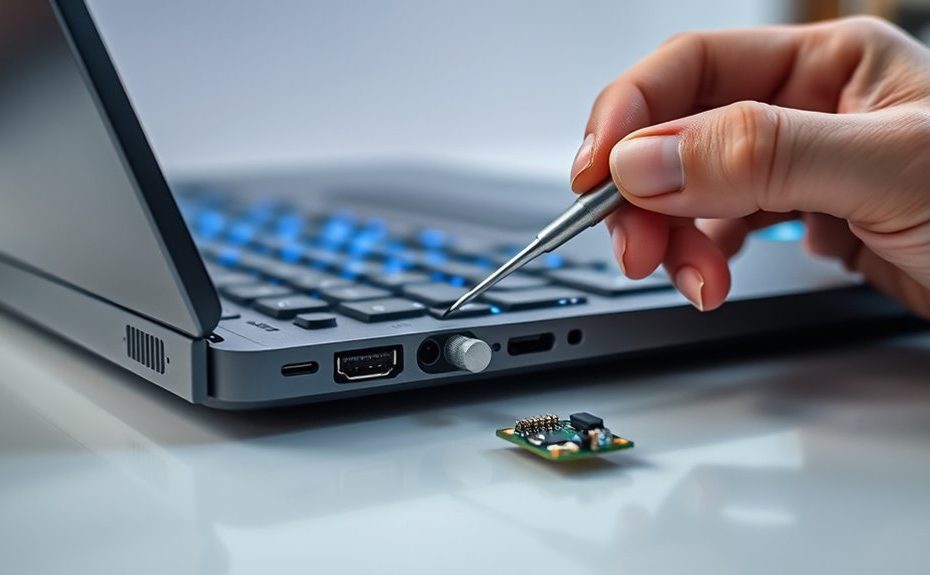
If your webcam isn’t detected, start by checking connections and try switching USB ports. Update your webcam driver through Device Manager or visit the manufacturer’s website for the latest version. Confirm your privacy settings allow app access, and restart your PC to reset hardware states. If it still doesn’t work, test the webcam on another device to rule out hardware failure. Keep exploring for more detailed steps that can help resolve the issue.
Key Takeaways
Update or reinstall your webcam drivers through Device Manager or the manufacturer’s website.
Check physical connections and try different USB ports to ensure proper hardware detection.
Enable the webcam in BIOS settings and verify privacy permissions in Windows Settings.
Power cycle the computer after disconnecting the webcam to reset hardware states.
Test the webcam on another device to determine if hardware failure is the cause.
Is your webcam not being detected on your computer? It can be frustrating, especially if you rely on it for video calls or recordings. The first step is to identify whether the issue stems from outdated drivers or hardware problems. Often, a driver update can resolve detection issues by ensuring your webcam communicates properly with your system. To do this, head to your device manager and locate your webcam under the “Imaging Devices” or “Cameras” section. Right-click on it and select “Update Driver.” Choose the option to search automatically for updated driver software. If Windows finds a newer version, it will install it, and you might see your webcam reappear in the device list. If no updates are found or updating doesn’t help, consider visiting the webcam manufacturer’s website to download the latest driver version directly. Sometimes, manufacturers release specific updates to fix bugs or improve compatibility with recent operating system updates.
Update your webcam driver via Device Manager or manufacturer’s website to fix detection issues.
If updating the driver doesn’t resolve the issue, hardware troubleshooting becomes your next focus. Check the physical connection if you’re using an external webcam. Unplug it and reconnect it securely to a different USB port, preferably one directly attached to your computer rather than a hub. Sometimes, a loose connection or a faulty port can prevent detection. Also, inspect the USB cable for visible damage or wear. If you have another compatible device, test it in the same port to rule out port failure. For built-in webcams, verify that the camera isn’t disabled in your system’s BIOS settings or device manager. Sometimes, hardware can be disabled accidentally, and enabling it restores functionality. Additionally, self-watering plant pots can serve as a reminder to keep your hardware environment clean and dust-free, which can sometimes impact device operation.
Power cycling your computer can also help reset hardware components and drivers. Shut down completely, disconnect any external webcams, wait a few seconds, then restart. Once back in Windows, see if the device is now detected. If it still isn’t, check your system’s privacy settings to ensure apps have permission to access the camera. In Windows, go to Settings > Privacy > Camera and toggle permissions on. Sometimes, the system blocks access to the camera for security reasons, preventing detection by apps.
If none of these steps work, it might be a hardware failure within the webcam itself. External webcams can malfunction over time, and built-in ones can have internal component issues. Testing the webcam on another computer can help determine if the problem is with the device or your system. If it’s defective, replacing the webcam may be your only option. Remember, troubleshooting hardware and updating drivers are your best bets for fixing a webcam that isn’t detected. With patience and systematic checking, you can often resolve the issue without needing professional repair.
Frequently Asked Questions
Can a Driver Update Fix Hardware Recognition Issues?
Yes, updating your driver can fix hardware recognition issues. When you update the driver, you improve driver compatibility, ensuring it works smoothly with your hardware. Additionally, running hardware diagnostics can help identify underlying problems. By keeping your drivers current and performing diagnostics, you can often resolve detection problems, ensuring your webcam is recognized and functions properly. Regular updates and checks are key to maintaining hardware performance.
Is a Faulty USB Port Causing Webcam Detection Problems?
A faulty USB port can indeed cause webcam detection problems. You might think it’s a software issue, but USB troubleshooting and hardware diagnostics reveal the real culprit. Try plugging your webcam into a different port to see if it’s recognized. If it still isn’t detected, test the port with other devices. This helps determine if the problem lies with the USB port itself or elsewhere in your system.
How Do I Test if My Webcam Is Physically Damaged?
You should start with a hardware inspection to check for physical damage, like cracks, bent connectors, or corrosion. Gently examine your webcam’s lens and body for any visible signs of damage. Connect it to another device to see if it works there. If it doesn’t, it’s likely physically damaged. If it does, then the problem might be with your original device or software rather than the webcam itself.
Can Third-Party Software Interfere With Webcam Detection?
Think of your webcam as a busy receptionist—if third-party software conflicts or permission issues block it, no one gets in. Sometimes, new software installs can override webcam permissions or cause conflicts, making detection tricky. To fix this, check your privacy settings and disable conflicting programs. You may also need to update your drivers or grant necessary permissions, ensuring your webcam can do its job without interference.
What Steps if the Webcam Is Listed but Not Working?
If your webcam is listed but not working, first check driver compatibility by updating or reinstalling the webcam drivers. Confirm your hardware is properly connected and functioning by running hardware troubleshooting tools. Restart your computer to refresh hardware detection. If issues persist, try connecting the webcam to a different port or device. These steps help identify and resolve driver or hardware problems causing the webcam not to work correctly.
Conclusion
Don’t let a defective device dampen your digital drive. By diligently diagnosing and daring to troubleshoot, you’ll diminish doubt and discover your device’s essentiality. Remember, patience and persistence pave the path to progress. When problems persist, prioritize patience, and practice problem-solving. With perseverance and a proactive approach, you’ll prevent future pitfalls and keep your webcam working well. Keep calm, troubleshoot thoroughly, and trust that your tech troubles will turn into triumphs.