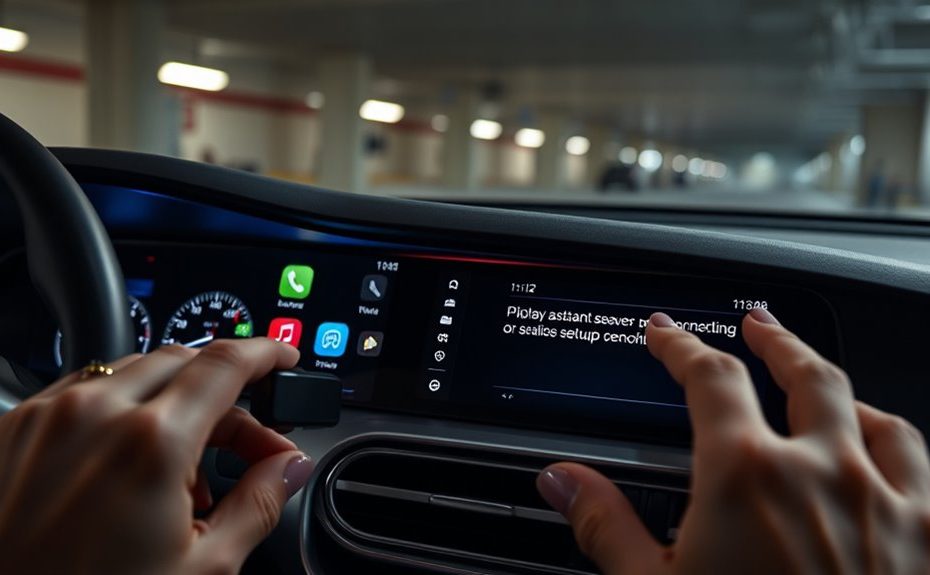
To set up CarPlay or Android Auto properly, first check that your phone and vehicle support the system, and update their software for best performance. Connect your device with a high-quality cable or pair it wirelessly via Bluetooth. When prompted, authorize device access on your vehicle’s screen. Make certain all permissions are granted, then access the interface for calls, navigation, and apps. If issues arise, troubleshooting tips will help you get connected smoothly every time.
Key Takeaways
Verify your vehicle supports CarPlay or Android Auto and update your phone’s software.
Use the original or high-quality USB cable to connect your device to the correct port.
Follow prompts on the vehicle screen to authorize and enable device access during connection.
For wireless setup, pair your phone via Bluetooth before connecting via USB or Wi-Fi.
Ensure both your device and vehicle firmware are up-to-date for optimal compatibility and performance.
Connecting your smartphone to your car’s infotainment system is easier than ever with Apple CarPlay and Android Auto. With just a few steps, you can enjoy seamless access to your favorite apps, navigation, and calls while keeping your focus on the road. To start, make sure your phone is compatible and that your vehicle supports either CarPlay or Android Auto. Before connecting, check that your phone’s software is up to date, as updates often include vital bug fixes and new features that enhance connectivity.
Once your devices are ready, connect your phone using a suitable cable—preferably the original one for peak performance. Plug your phone into the USB port designated for media or smartphone connection. A prompt should appear on your car’s screen asking for permission to access your device; accept it. If you don’t see this prompt, double-check your cable connection or consult your vehicle’s manual to verify you’re using the correct port. Some vehicles also support wireless connections, which eliminate the cable, but you’ll need to pair your phone via Bluetooth first.
Connect your phone with the original cable and ensure you’re using the correct USB port for seamless CarPlay or Android Auto access.
After successful connection, your infotainment system will display the CarPlay or Android Auto interface. Now, you can start using voice commands to operate your system hands-free. Whether you want to make calls, send messages, or navigate, voice commands provide a safe, efficient way to control your device without distraction. For example, you can say, “Call John,” or “Navigate to the nearest gas station,” and your system will process and execute the command. If voice commands aren’t working properly, troubleshooting tips include ensuring your microphone isn’t blocked, checking your device’s permissions, and updating your system software. Sometimes, disconnecting and reconnecting the device or restarting both your phone and vehicle can resolve minor glitches.
Getting comfortable with voice commands is key to a smoother experience. Practice simple commands first to familiarize yourself with how your system responds. Additionally, high-quality connections are essential for optimal performance and minimizing issues. If you encounter problems, consult your vehicle’s manual or the app’s support resources. Many problems stem from outdated software, compatibility issues, or poor connection quality. Always keep your device and vehicle firmware current, and verify the USB cable or wireless connection is secure.
Frequently Asked Questions
Can I Use Carplay or Android Auto Without a Wired Connection?
Yes, you can use CarPlay or Android Auto without a wired connection if your vehicle and device support wireless connectivity. Make sure your car meets compatibility requirements and that your phone’s Bluetooth and Wi-Fi are enabled. Once paired, you’ll enjoy a seamless, cable-free experience. Keep in mind, not all models support wireless CarPlay or Android Auto, so check your vehicle’s specifications first.
How Do I Update Carplay or Android Auto Software?
You’re on the ball if you want to update CarPlay or Android Auto software. First, check for wireless setup options in your vehicle settings or the compatible app. Then, go to your phone’s settings or the manufacturer’s app to look for firmware updates. Keep your system current, as updates often fix bugs and improve performance. Staying up-to-date is key to keeping your connection smooth as silk.
Are There Compatibility Issues With Specific Phone Models?
You might face compatibility issues if your phone model isn’t supported or if your firmware isn’t up to date. Check your phone’s compatibility with your vehicle’s system, as some models work better than others. Confirm you’ve installed the latest firmware updates for both your phone and car system, which can resolve many compatibility problems. Regular updates help maintain smooth connections and prevent issues when using CarPlay or Android Auto.
How Do I Troubleshoot Connection Problems?
If you’re facing connection problems, start by checking your wireless connectivity. Make certain your phone and car are within range and both have Bluetooth and Wi-Fi enabled. Follow troubleshooting steps like restarting your phone and car’s infotainment system, re-pairing your devices, and updating your phone’s software. If issues persist, try connecting via a wired connection to identify if wireless interference is the problem.
Can I Customize the Interface of Carplay or Android Auto?
Think of your car’s interface like a blank canvas waiting for your personal touch. Yes, you can customize CarPlay or Android Auto’s interface to suit your aesthetic preferences. You can rearrange icons, choose wallpapers, and adjust display settings to create a seamless, personalized experience. Immerse yourself in your device’s settings, explore available options, and make aesthetic adjustments that reflect your style, turning every drive into a reflection of you.
Conclusion
Getting CarPlay or Android Auto set up is like planting a seed—you just need the right instructions to see it flourish. Once you’ve connected your device properly, your car’s infotainment system becomes a smooth highway for your apps and music. With a little patience, you’ll navigate this tech landscape effortlessly, turning your drive into a journey of convenience and connection. So, take the wheel, follow these steps, and watch your in-car experience blossom.