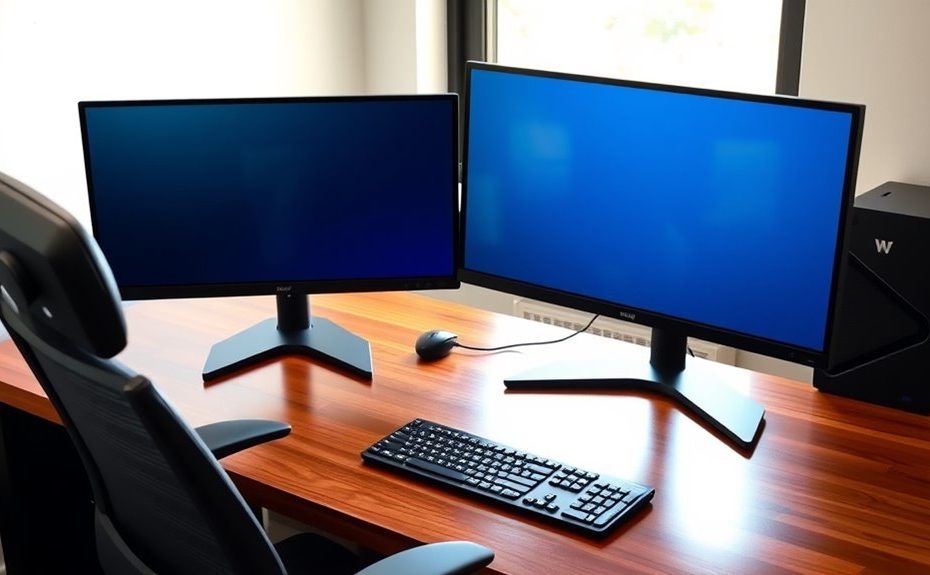
To set up dual monitors correctly, start by connecting each display securely using appropriate cables like HDMI or DisplayPort. Adjust your display settings to match each monitor’s resolution and layout for smooth cursor movement. Organize and secure cables with clips or ties to keep your workspace tidy and prevent damage. Regularly calibrate your screens for accurate colors and clarity, and check connections periodically. Keep exploring to learn more tips for a seamless, professional setup.
Key Takeaways
Connect monitors using compatible cables and verify your graphics card supports dual display outputs.
Arrange monitors physically to match your workspace layout, adjusting display settings for seamless cursor movement.
Calibrate each monitor for color accuracy, brightness, and contrast to ensure consistent visuals across screens.
Manage cables with clips or ties to prevent clutter and protect connections from damage.
Regularly check and recalibrate monitors, and adjust settings for lighting changes to maintain optimal display performance.
Setting up dual monitors can considerably boost your productivity and streamline your workflow, but only if you do it correctly. The first step is making sure that each monitor is properly calibrated. Monitor calibration involves adjusting the display settings so that colors, brightness, contrast, and gamma levels are accurate and consistent across both screens. When your monitors are calibrated correctly, it reduces eye strain and makes it easier to work on detailed tasks, whether you’re editing photos, designing graphics, or simply multitasking. Most operating systems offer built-in calibration tools to guide you through this process, but for more precise results, consider using dedicated calibration hardware or software. Taking the time to calibrate your monitors at the outset pays off in improved visual clarity and color accuracy. Regularly checking your calibration ensures ongoing accuracy, especially if lighting conditions in your workspace change over time. Cable management is another vital aspect of setting up dual monitors. Poor cable management can lead to cluttered, tangled cords that not only look unprofessional but also cause frustration and accidental disconnections. To avoid this, plan your cable routing before connecting your monitors. Use cable clips, sleeves, or ties to bundle cables neatly along your desk or behind your stand. This keeps your workspace organized, reduces tripping hazards, and makes future adjustments easier. Additionally, ensure that your cables are long enough to reach your computer comfortably without stretching or putting strain on the ports. Proper cable management also prevents accidental damage to your connectors, which can cause display issues or hardware failure over time. When connecting your monitors, check that your graphics card supports the number and type of connections you plan to use. Use the appropriate cables—such as HDMI, DisplayPort, or DVI—and ensure they’re securely plugged in. Once connected, go into your display settings to arrange the monitors correctly. You’ll want to match the physical layout of your screens in the software to avoid confusion when moving your cursor or dragging windows. Adjust the resolution and refresh rate to match the native capabilities of each monitor, which helps prevent flickering or display artifacts. Don’t forget to optimize your display settings periodically to maintain visual consistency as technology or lighting conditions change. Finally, don’t forget to double-check your monitor calibration periodically. Over time, displays can drift in color accuracy, especially if exposed to different lighting conditions. Regularly checking and recalibrating your monitors ensures your workflow remains efficient, your visuals stay true, and your workspace continues to function smoothly. Combining proper calibration with effective cable management creates a dual-monitor setup that’s not only functional but also comfortable and reliable for long-term use.
Frequently Asked Questions
How Do I Troubleshoot Monitor Detection Issues?
If your monitors aren’t detected, start by checking the display resolution settings and verify they match each monitor’s capabilities. Then, try recalibrating each monitor’s display settings to improve clarity. Restart your computer and reconnect the cables to refresh the connection. Also, update your graphics driver, as outdated drivers can cause detection issues. These steps help your system recognize both monitors correctly and optimize their display resolution.
Can I Use Different Brands for Dual Monitors?
You can absolutely use different brands for dual monitors—it’s like mixing apples and oranges. Just make sure to check monitor brand compatibility and verify both displays support the same connection types. You may need to tweak monitor calibration settings to get the colors and brightness to match. As long as your system recognizes both, using different brands shouldn’t be an issue, and you’ll enjoy a versatile, multi-screen setup.
What Cables Are Compatible With My Graphics Card?
Your graphics card’s ports determine which cables are compatible. If it has HDMI, use an HDMI cable; if it has DisplayPort, opt for a DisplayPort cable. Some cards also support DVI or VGA, so choose cables accordingly. Check your graphics card’s specifications to identify the available ports, then select cables that match those port types for seamless connectivity and peak display quality.
How Do I Adjust Color Settings for Dual Monitors?
Think of adjusting your color settings as tuning a symphony, where each monitor plays its part in harmony. You’ll want to access your display settings and select color calibration to fine-tune brightness, contrast, and gamma. Use display profiles to guarantee consistency across both screens, creating a seamless visual experience. Once calibrated, your dual monitors will work together like a well-conducted orchestra, rich in color and clarity.
Is It Possible to Set Different Wallpapers on Each Monitor?
Yes, you can set different wallpapers on each monitor for custom wallpaper and multi monitor backgrounds. To do this, right-click on your desktop and select “Personalize” or “Display settings.” Then, choose each monitor individually and set a different wallpaper for each. Many operating systems, like Windows, allow you to select images directly or drag and drop to assign custom wallpapers, giving you full control over your multi monitor backgrounds.
Conclusion
So, after all this, you’ve got your dual monitors perfectly set up—ready to boost your productivity. Ironically, with twice the screens, you might find yourself staring at them longer, getting lost in endless tabs and windows. But hey, at least now you can blame the setup if your workflow feels chaotic. Just remember, with great display power comes great responsibility—so use those screens wisely, or they’ll just be another distraction in your busy day.