This checklist is for anyone refreshing a home office setup for 2026, whether you’re adding a few essentials or reviewing the whole desk. It covers everyday workspace upgrades that can help organize your devices and work area.
The sections follow the listed picks: a docking station, monitor arm, keyboard, headset, and surge eliminator, plus advice for choosing a webcam with a privacy shutter. Each entry focuses on fit and compatibility alongside the role that item plays in a setup.
Use the checklist to compare each pick with your actual devices, desk, and work habits. Check the product’s specifications before buying, especially for connection types and supported sizes; names alone don’t establish compatibility.
The checklist
✓ USB-C docking station✓ Ergonomic monitor arm✓ Mechanical keyboard✓ Webcam with privacy shutter✓ Noise-cancelling headset✓ Surge protector with USB-C
USB-C docking station
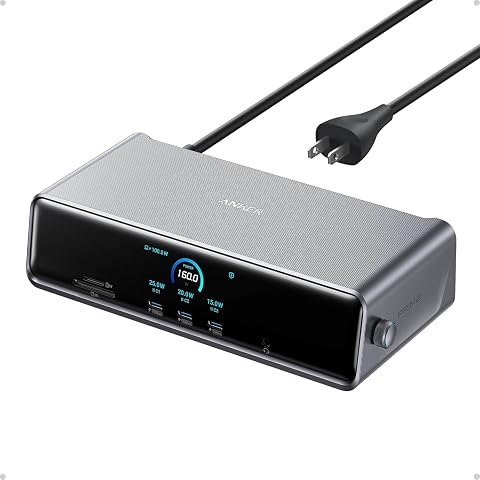
A docking station can make a desk easier to connect and disconnect when you use several peripherals. The listed pick is the Anker Prime DL7400 14-in-1 DisplayLink Docking Station. Before choosing it, make a list of the devices you plan to attach and compare their connections with the dock’s documented ports and requirements. The product name indicates a 14-in-1 dock and DisplayLink, but it doesn’t specify the exact ports or supported displays, so confirm those details in the product specifications.
A common mistake is assuming that a USB-C connector guarantees every desired function. Check whether your computer supports the features you need, and verify any DisplayLink software or operating-system requirements. Also consider where the dock will sit and whether the supplied cables can reach your computer and peripherals. Check the full port list, host requirements, and display support before committing; a larger connection count matters only if it matches your equipment and workflow.
What to look for:
Confirm every required port against the official specifications.Check computer and operating-system compatibility, including DisplayLink requirements.Verify supported display count, resolution, and refresh rate for your setup.Check included cable type and length, plus where the dock will sit.Make sure the connection plan covers the peripherals you actually use.
Anker Prime DL7400 14-in-1 DisplayLink Docking Station
This docking station connects up to three 4K displays and offers USB-C, USB-A, HDMI, DisplayPort, Ethernet, audio, and SD/TF card ports. It supports laptop charging up to 140W, with a built-in display and fan for monitoring and cooling.
Pros:
Supports up to three 4K external displaysProvides up to 140W laptop chargingBroad selection of ports, including 2.5Gbps EthernetBuilt-in smart display and fan cooling
Cons:
Requires a DisplayLink driver for triple-display useDRM-protected streaming may show a black screenFront USB-C ports do not support video output
Best for: People who want to connect several compatible devices through one dock.
Not ideal for: Anyone whose computer or display needs do not match its documented requirements.
Bottom line: Choose the Anker Prime DL7400 only after matching its verified ports and compatibility details to your devices.
Ergonomic monitor arm
A monitor arm can change how screens sit over a desk, but fit depends on the monitor, mounting point, and available space. The listed pick is the HUANUO Dual Monitor Stand for 13-40 inch Monitors with USB, Height Adj. Its name gives a stated monitor-size range and identifies it as a dual stand, but you should verify the supported weight, mounting standards, and adjustment range in the full specifications.
Don’t buy based on screen size alone: monitors of the same diagonal size can have different weights and mounting arrangements. Measure the desk and check its thickness and edge shape against the clamp or other included mounting method. For two screens, consider their combined placement, cable routing, and whether the arm can move without hitting a wall or shelf. Confirm each monitor’s fit and the desk attachment before ordering. The right choice should suit both screens and the work area, rather than forcing either into an awkward position.
What to look for:
Verify each monitor falls within the stated 13-40 inch range.Check the weight limit per monitor and combined capacity in the specifications.Confirm VESA or other mounting compatibility for both monitors.Measure desk thickness and check the stand’s mounting method.Review height, tilt, swivel, clearance, and cable-management details.
HUANUO Dual Monitor Stand for 13-40 inch Monitors with USB, Height Adjustable, V
This dual monitor stand supports two screens ranging from 13 to 40 inches, each weighing up to 26.4 lbs. It features adjustable height, full motion articulation, and built-in USB ports for convenient device charging, helping to free up desk space and improve ergonomics.
Pros:
Supports large monitors up to 40 inches and 26.4 lbs eachFull motion adjustment for optimal ergonomic positioningIncludes built-in USB ports for device chargingFlexible mounting options with clamp and grommet bases
Cons:
May be heavy to move once installedRequires desk with sufficient thickness for mountingSome users may find assembly complex
Best for: People with two monitors that meet the stand’s verified fit requirements.
Not ideal for: Anyone whose monitors or desk fall outside the documented mounting limits.
Bottom line: Match both monitors and the desk to the HUANUO stand’s full specifications before buying.
Mechanical keyboard
A keyboard is one of the most frequently used parts of a desk setup, so connection, layout, and typing feel deserve attention. The pick is the Logitech MX Mechanical Wireless Illuminated Keyboard, Tactile Quiet, G. The name describes it as wireless and illuminated with tactile quiet keys, but the final “G” does not establish a layout or regional configuration. Check the product listing for the exact model and layout before purchase.
A common mistake is choosing by switch description alone and overlooking size, language layout, or device support. Compare the keyboard’s layout with your usual typing needs, and confirm which wireless connections and operating systems it supports. If you use multiple devices, verify how it pairs and switches between them rather than assuming those features from the product name. Check layout and pairing against your routine, and consider desk space, lighting preferences, and whether the keyboard’s feel suits your typing. Product details can vary by model, so rely on the exact listing.
What to look for:
Confirm the exact model, layout, and language configuration.Check operating-system and device compatibility.Verify wireless connection options and any multi-device switching features.Review the tactile quiet key description against your typing preference.Check keyboard dimensions and illumination controls for your desk.
Logitech MX Mechanical Wireless Illuminated Keyboard, Tactile Quiet, Graphite
A full-size wireless mechanical keyboard with low-profile Tactile Quiet switches and smart backlighting that activates as your hands approach. It pairs with up to three devices, charges via USB-C, and runs for up to 15 days per charge with backlighting enabled.
Pros:
Quiet tactile switches provide feedback with less typing noiseSmart backlighting activates when hands approach and adjusts to ambient lightConnects to and switches between up to three devicesRechargeable battery offers up to 15 days with backlighting
Cons:
Backlighting-off battery life is much longer than battery life with lighting enabledSome features require Logi Options+ software on Windows or macOS
Best for: People seeking a wireless keyboard with tactile quiet keys and illumination.
Not ideal for: Anyone needing a specific layout or feature that the exact listing does not confirm.
Bottom line: Verify the precise MX Mechanical model and layout before deciding it fits your devices and typing habits.
Webcam with privacy shutter
A webcam with a privacy shutter can make camera use easier to manage by giving you a physical way to cover the lens. No product is specified for this slot, so treat it as a feature checklist and compare models based on your calls, computer, and mounting position. Check whether the shutter is built in and can be opened and closed without obstructing the camera or making the webcam awkward to position.
Common buying mistakes include assuming that a webcam will work with every meeting app or that its image quality suits every room. Confirm operating-system and connection compatibility, then review the manufacturer’s stated video capabilities and field of view. Think about whether the camera will sit on a monitor, laptop, or separate mount, and check that the shutter remains accessible in that position. Test the physical fit against your screen and call setup; a privacy feature is useful only if it is convenient to use. Compare documented specifications rather than inferring capabilities from appearance.
What to look for:
Confirm the webcam has a physical privacy shutter.Check USB connection and operating-system compatibility.Review documented resolution, frame rate, and field of view.Make sure the clip or mount suits your screen or intended placement.Check that the shutter is easy to reach when the camera is installed.
Noise-cancelling headset
A headset can help make calls and focused work more convenient, but the right fit depends on comfort, controls, and device support. The listed pick is Wireless Noise-Cancelling Earbuds with 60-Hour Playtime. The product name describes wireless earbuds and noise cancellation, and states a 60-hour playtime figure; check the product details to understand what that figure represents and the conditions behind it.
Don’t assume that earbuds will fit comfortably for long sessions or that noise cancellation behaves the same in every environment. Review the available ear-tip sizes, control method, microphone details, and supported Bluetooth devices. If you need to use them for calls, confirm how they connect to your computer and whether their call controls work with your apps. Prioritize fit and call use alongside the headline features. Check the return and support terms in the listing, and make sure the controls are practical for your workday.
What to look for:
Check supported Bluetooth versions and computer compatibility.Review included ear-tip sizes and fit guidance.Confirm microphone and call-control details in the product specifications.Clarify the conditions behind the stated 60-hour playtime.Check how noise cancellation is controlled and whether settings suit your use.
Wireless Noise-Cancelling Earbuds with 60-Hour Playtime
These wireless earbuds feature adaptive noise cancellation, transparency mode, 11 mm drivers, and six microphones for clearer calls. They offer up to 60 hours of total playtime with the charging case, customizable EQ settings, multipoint connection, and a companion app with earbud-finding features.
Pros:
Adaptive ANC with transparency mode and wind-noise resistanceLong battery life and fast chargingMultipoint connection and customizable audio settingsLightweight fit with three ear-tip sizes
Cons:
The 60-hour figure includes the charging case; earbuds provide 10–15 hours per chargeGPS location is described as tracking the last connected location
Best for: People looking for wireless earbuds with noise cancellation.
Not ideal for: Anyone who needs a specific fit, call feature, or connection not confirmed in the listing.
Bottom line: Confirm fit, computer pairing, call details, and the playtime conditions before choosing these earbuds.
Surge protector with USB-C
Power protection belongs in a desk checklist because computers and accessories often share a workspace, but the product name alone cannot establish how a device fits your circuit or equipment. The listed pick is the SurgeX SA-20 Standalone Surge Eliminator – 120 Volt, 20 Amp, Advanced. Its name gives voltage and amperage figures; consult the official specifications to understand its intended use, connections, and installation requirements.
A frequent mistake is treating every surge-related product as a general-purpose power strip or assuming the title confirms USB-C charging. The listed name does not mention USB-C, so verify that feature directly before buying if it is required. Check the outlet type, load limits, grounding needs, and whether professional installation or a particular circuit is specified. Match electrical requirements to your location and equipment, and follow the manufacturer’s documentation. If you need multiple outlets or USB-C, confirm those are actually part of the exact model rather than inferred from the category.
What to look for:
Verify whether the exact model includes USB-C; the name does not confirm it.Check voltage, amperage, outlet configuration, and intended application.Review grounding, installation, and circuit requirements in the documentation.Confirm load limits against the devices you plan to connect.Make sure the model name and suffix match the official product listing.
SurgeX SA-20 Standalone Surge Eliminator – 120 Volt, 20 Amp, Advanced Series Mod
The SurgeX SA-20 is a surge eliminator designed to protect sensitive electronics from surges, spikes, and noise. It features advanced non-sacrificial technology that eliminates surge energy up to 6,000 volts, enhancing audio, video, and mission-critical device performance.
Pros:
Non-sacrificial surge protection technology ensures durabilityEffective noise filtering improves audio and video qualitySuitable for sensitive electronics like audio, video, and laboratory equipmentHigh surge capacity up to 6,000 volts
Cons:
Limited number of outlets (only 2)Designed for specific electrical standards (120V, 20A)No integrated power switch or additional features
Best for: People whose power setup matches the product’s documented requirements.
Not ideal for: Anyone who needs USB-C or outlet features not confirmed for this model.
Bottom line: Verify the SurgeX model’s connections and electrical requirements before adding it to your desk.
Buy in an order that addresses your biggest daily friction first: confirm computer and display compatibility, then prioritize the item that best fits your desk and routine. Check the monitor arm against both screens, verify the dock’s ports, and review keyboard and headset fit before filling any remaining gaps. Let compatibility lead your checklist, especially for connections and electrical requirements.
Work through one section at a time, keeping the exact product listing and your device details nearby. A few careful checks can help you choose gear that fits the way you actually work. Build your setup deliberately and enjoy making your home office more comfortable to use.