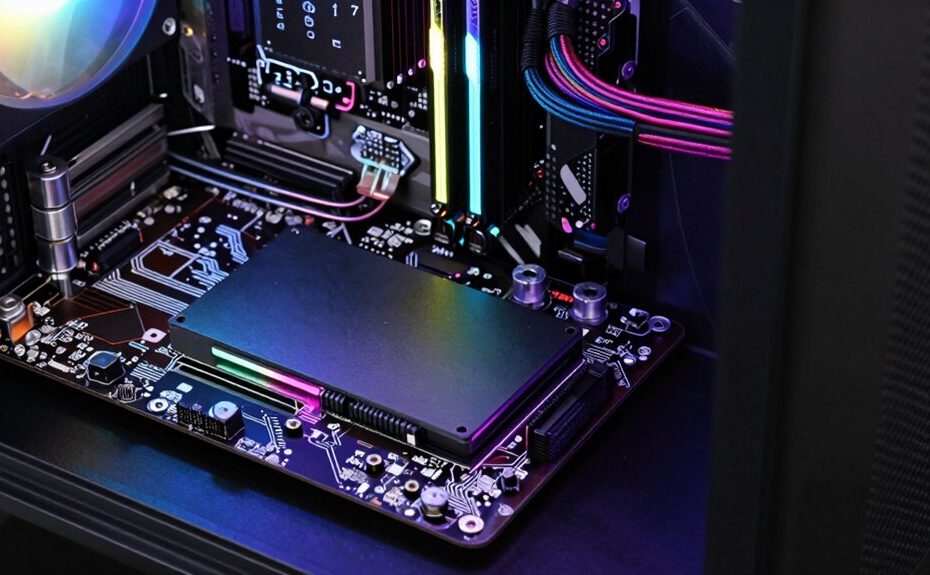
Upgrading to a solid-state drive (SSD) can drastically boost your desktop’s speed, making everything from boot times to software launches quicker and more responsive. SSDs also improve reliability and reduce mechanical failures, offering a dependable way to safeguard your data. The installation process is straightforward and compatible with most systems. Even as technology advances, SSDs continue to deliver unmatched value, especially for gamers, professionals, and everyday users. Keep going to discover how to maximize these benefits.
Key Takeaways
SSD upgrades dramatically improve system speed, reducing boot and load times for a more responsive desktop experience.
They enhance data transfer speeds, making large file backups and transfers quicker and more efficient.
Installing an SSD is straightforward and compatible with most modern motherboards, ensuring easy system upgrades.
SSDs increase reliability and durability, lowering the risk of mechanical failure compared to traditional HDDs.
The cost-effective upgrade offers long-term performance benefits for gamers, professionals, and everyday users alike.
Upgrading your desktop with a solid-state drive (SSD) remains one of the most cost-effective ways to boost performance, even as newer storage technologies emerge. If you’re looking to improve your overall system speed, an SSD makes a noticeable difference in how quickly your applications load and how smoothly your operating system runs. For gamers, this upgrade can considerably enhance gaming performance by reducing load times, minimizing stutter, and delivering a more seamless experience. Instead of waiting through long loading screens, you get into your game faster and spend more time playing. An SSD’s fast data transfer speeds mean your game saves, textures, and assets load instantly, giving you an edge in competitive play or immersive gameplay.
Beyond gaming, an SSD helps you handle data backup more efficiently. When you’re copying large files or creating backups, traditional hard drives can slow you down. An SSD accelerates these processes, saving you valuable time and reducing frustration. Plus, because SSDs are less prone to mechanical failure than spinning disks, your backups are more reliable, offering peace of mind for your important files. This dependability becomes particularly vital if you store sensitive or irreplaceable data, such as personal documents, photos, or work files. Upgrading to an SSD guarantees that your data backup routines are quicker and more dependable, making it easier to maintain regular backups without disrupting your workflow. Incorporating reliable storage solutions can further optimize your data management strategies and help you implement compliance standards for data security.
Installing an SSD is straightforward, especially if you’re comfortable opening up your desktop. Most modern motherboards support NVMe or SATA SSDs, and the process typically involves mounting the drive, connecting it to the appropriate port, and cloning your existing drive if needed. Once installed, your system recognizes the new drive almost immediately, and you’ll notice the difference in everyday tasks. Boot times drop from minutes to seconds, and launching heavy software or large files becomes faster than ever. This boost in performance doesn’t just benefit gaming or backups; it transforms your entire computing experience, making your desktop feel snappier and more responsive overall. Recognizing compatibility considerations can help you choose the best SSD for your specific system and needs. Additionally, choosing an SSD with a high IOPS (Input/Output Operations Per Second) rating can further enhance your system’s responsiveness, especially for demanding applications.
Even as new storage options like cloud-based solutions and larger hard drives become more common, SSDs continue to offer unmatched speed and reliability at a reasonable cost. They remain a smart upgrade choice for anyone wanting a notable performance boost without breaking the bank. Whether you’re a gamer, a professional, or someone who just wants their desktop to run smoother, investing in an SSD delivers long-lasting value that keeps your system running at its best. Additionally, understanding contrast ratio can help you appreciate how visual clarity and depth are improved, making your upgraded system even more effective for multimedia tasks.
Frequently Asked Questions
What Are the Best SSD Brands for Desktop Upgrades?
For desktop upgrades, you should consider brands like Samsung, Western Digital, and Crucial, known for reliable SSDs with impressive lifespan and data encryption features. Samsung’s EVO series offers excellent durability, while WD’s Black series provides fast performance and security. Crucial balances affordability with quality. Always check the SSD’s lifespan, typically rated in TBW, and guarantee it supports data encryption for your privacy needs. These brands deliver dependable performance for your upgrade.
How Much RAM Do I Need Alongside an SSD?
You should aim for at least 8GB of RAM for smooth performance, especially if you’re upgrading to a high-capacity SSD. If you do intensive tasks like gaming, video editing, or multitasking, consider 16GB or more. Your SSD capacity depends on your storage needs, but pairing a larger SSD with sufficient RAM guarantees faster load times and better overall responsiveness. Balance between RAM and SSD capacity based on your specific usage.
Can SSDS Improve Gaming Performance Significantly?
Imagine launching into a game where the loading screens vanish like fog, revealing instant access to your world. SSDs can notably boost gaming performance by reducing load times and offering smoother gameplay. Keep in mind, however, their lifespan depends on usage, and data recovery can be tricky if failure occurs. Upgrading to an SSD transforms your gaming experience, making each session faster and more immersive.
Are There Compatibility Issues With Older Desktops?
You might face some compatibility issues with older desktops when upgrading to an SSD. Many older systems use Legacy BIOS, which can sometimes struggle with newer SSDs that require UEFI. Additionally, some older desktops may experience increased power consumption or compatibility problems with certain SSD models. Before upgrading, check your motherboard’s specifications and BIOS settings to confirm compatibility, and consider updating your BIOS if possible.
How Do I Clone My Existing Drive to a New SSD?
Imagine upgrading your desktop’s storage and wanting a seamless shift. You should use data migration with cloning software to copy your existing drive to the new SSD. First, connect the SSD, then run the cloning software, select your source drive, and follow prompts. This process creates an exact copy, ensuring your system boots normally from the new drive without reinstallation. It’s a straightforward way to upgrade effortlessly.
Conclusion
So, as you consider your upgrade options, remember that a desktop SSD isn’t just a tech choice—it’s a smart move that often coincides with smoother workflows and faster boot times. It’s funny how the right upgrade can suddenly make your entire system feel new again. Don’t overlook the value; sometimes, just a simple SSD swap can unexpectedly transform your daily experience, proving that timing and the right tech choice can truly make all the difference.