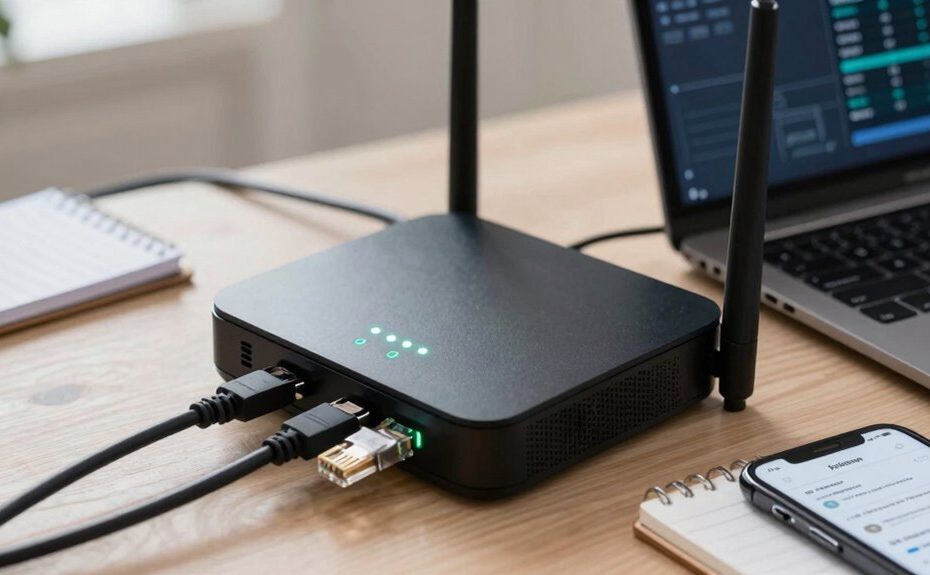
To diagnose home internet bottlenecks, start by updating your router’s firmware and reviewing its security settings to prevent unauthorized devices. Check for signal interference from devices like microwaves or cordless phones and adjust your router’s channel if needed. Manage bandwidth by limiting connected devices and running speed tests during different times. Upgrading hardware or plans can help if issues persist. Keep exploring these steps to uncover solutions that can markedly improve your connection.
Key Takeaways
Conduct speed tests at different times to identify consistent slowdowns or peak congestion periods.
Check for signal interference from household devices like microwaves or cordless phones.
Review and update router firmware and security settings to ensure optimal performance.
Evaluate network topology and device placement to strengthen Wi-Fi signal coverage.
Monitor connected devices to manage bandwidth and prevent congestion.
If your home internet feels slow or inconsistent, pinpointing the problem can seem intimidating. You might wonder where to start or which devices could be causing issues. The first step is to understand that many bottlenecks stem from simple causes like improper router configurations or signal interference. These factors are often overlooked but can significantly impact your connection quality. Begin by checking your router settings; ensure that your router’s firmware is up to date, as outdated software can cause performance problems. Review your network’s security settings to confirm that only authorized devices are connected, preventing unwanted bandwidth consumption. Adjusting your router’s channel settings can also help. Many routers automatically select channels, but they may end up crowded if your neighbors’ networks are using the same ones. Switching to a less congested channel can improve signal clarity and speed. Additionally, understanding your network’s bandwidth limitations can help you better manage your connected devices and avoid slowdowns. Running speed tests at different times of the day can also help you identify patterns or peak usage times that may be causing your issues. If your speeds are consistently lower than what your internet plan promises, contact your provider for support or consider upgrading to a higher-tier plan. Sometimes, upgrading your router hardware can also provide a significant performance boost, especially if your current device is outdated. To further optimize your connection, consider evaluating your network topology and how your devices are arranged within your home. Conducting a signal interference assessment can reveal sources like microwaves or cordless phones that might disrupt your Wi-Fi. Being aware of signal interference sources such as microwaves or cordless phones can also help improve your overall connection quality.
Frequently Asked Questions
How Often Should I Check My Internet Speed?
You should check your internet speed at least once a month to catch any fluctuations early. Frequent Internet speed fluctuations can indicate issues, so regular testing helps you spot problems. Make certain your router firmware updates are current, as outdated firmware can cause slowdowns. Additionally, check your speed after making changes or adding new devices to guarantee your connection remains ideal. Regular testing keeps your internet running smoothly.
Can Multiple Devices Affect My Internet Speed?
Yes, multiple devices can affect your internet speed. Device congestion occurs when many devices use bandwidth simultaneously, slowing down your connection. Network prioritization helps manage this by assigning priority to certain devices or activities, but if too many devices are active, overall speed drops. To improve performance, limit device usage during high-demand times or set up network prioritization to guarantee essential devices get the necessary bandwidth.
Does Router Placement Impact Connection Quality?
Imagine your router as a lighthouse, its placement shaping the signal’s journey. Poor router placement invites signal interference from walls, furniture, and other electronics, weakening your connection. To improve quality, position your router in a central, elevated spot free from obstructions and electronic clutter. This strategic placement minimizes signal interference, enhances coverage, and guarantees a stronger, more reliable internet connection throughout your home.
What Is a Typical Bandwidth for Streaming and Gaming?
For streaming and gaming, a typical bandwidth benchmark ranges from 5 to 25 Mbps for HD streaming and around 25 Mbps or more for 4K content. Gaming usually requires a stable connection with at least 3-6 Mbps, but latency and ping are just as important. To meet streaming requirements, make certain your internet plan provides sufficient bandwidth, especially if multiple devices are connected simultaneously.
How Do I Identify if My Modem Is Faulty?
To identify if your modem is faulty, start by checking its firmware; outdated firmware can cause issues. Look for signs like frequent disconnections or slow speeds. Also, consider signal interference from other devices or appliances that might degrade your connection. Reset your modem and update its firmware if needed. If problems persist, test with a different modem to determine if your current one is faulty.
Conclusion
Think of your internet connection as a highway. If traffic slows down, it’s often because one lane is clogged. By diagnosing bottlenecks, you’re fundamentally clearing the way for smooth traffic flow, ensuring data travels swiftly to your devices. Remember, a well-maintained highway keeps your digital life running seamlessly, just like a clear road keeps cars moving. Regular checks help prevent future jams, so stay vigilant and keep your internet running at full speed.