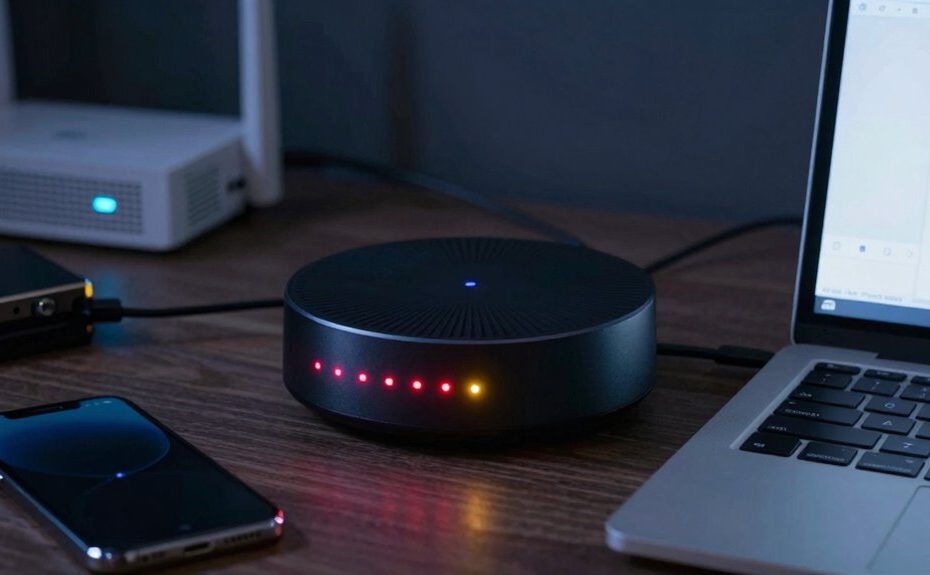
When your smart device keeps going offline, start by ensuring it’s within Wi-Fi range and restart both the device and your router to refresh the connection. Check your internet stability on other devices to identify network issues. You should also update your device firmware and review your network security settings regularly. Managing bandwidth and reducing connected devices can help prevent congestion. For more tips on fixing persistent issues, you’ll find useful insights if you continue exploring.
Key Takeaways
Restart both your device and Wi-Fi router to reset connections and clear temporary glitches.
Check for and install any pending firmware updates for your device.
Ensure your device is within Wi-Fi range and reduce network congestion by limiting connected devices.
Verify device settings and perform a factory reset if software issues are suspected.
Contact customer support if the problem persists or if there are known outages affecting your device.
When your smart device suddenly goes offline, it can be frustrating, especially if you’re relying on it for daily tasks. You might find yourself unable to control your lights, check the weather, or play music, which can disrupt your routine. Often, these issues stem from connectivity hiccups or software glitches that need quick troubleshooting. One common problem is voice command issues, where your device doesn’t respond as it should. If your device isn’t understanding your commands or isn’t executing them correctly, it could be due to a weak Wi-Fi signal or outdated firmware. First, confirm your device is within range of your Wi-Fi router, and try moving it closer if needed. Sometimes, a simple restart of your device and router can re-establish a stable connection.
When your smart device goes offline, check Wi-Fi range, restart devices, and update firmware to restore connectivity quickly.
Firmware updates are another critical factor. Manufacturers regularly release updates to improve performance, fix bugs, and enhance security. If your device isn’t running the latest firmware, it might be more prone to going offline or experiencing voice command issues. Check the app associated with your smart device for any pending updates, and follow the instructions to install them. Keeping your firmware current often resolves many connectivity problems and guarantees your device functions at its best. Additionally, ensuring your network security is up to date can help prevent unauthorized access that might cause connectivity disruptions.
If your device continues to disconnect, verify that your Wi-Fi network is stable. Use another device to test the internet connection; if other devices also struggle, the problem is likely with your network rather than the device itself. Restart your modem and router to clear any temporary glitches. Additionally, ensure your network isn’t overloaded with too many connected devices, which can strain bandwidth and cause disconnections. Regularly reviewing your Wi-Fi network setup can help prevent these issues. It’s also beneficial to understand connectivity issues and how they affect device performance, so staying informed can aid in troubleshooting. Understanding how network congestion impacts your smart device can help you better manage your home network and prevent disconnections.
Sometimes, the problem lies with the device’s settings. Access the device’s app or control panel to check for any misconfigurations or restrictions that might prevent it from staying online. Resetting your device to factory settings can also help, especially if software corruption is suspected. Remember, after a reset, you’ll need to reconfigure your device and reconnect it to your Wi-Fi network. Additionally, reviewing privacy and security practices can ensure your device is protected and functioning optimally.
Lastly, if voice command issues persist despite these troubleshooting steps, consider reaching out to customer support. They can provide specific guidance or inform you if there’s a broader outage affecting your device model. Staying proactive with firmware updates and maintaining a strong, stable Wi-Fi connection will minimize future offline occurrences, keeping your smart device functioning smoothly when you need it most.
Frequently Asked Questions
How Often Should I Restart My Smart Device to Prevent Disconnections?
You should restart your smart device once a month to prevent disconnections. Regularly power cycling helps refresh connections and resolve minor glitches. Make sure proper device placement—avoid areas with poor Wi-Fi signals or interference. If disconnections persist, try restarting more frequently or adjusting placement. Power cycling and strategic device placement keep your smart device connected reliably, minimizing offline issues and maintaining smooth operation.
Can Wi-Fi Interference Cause My Smart Device to Go Offline?
Like a whisper lost in a crowded room, Wi-Fi interference can make your smart device go offline. Bluetooth interference and power line noise are common culprits, disrupting signals and causing disconnections. To fix this, move your device closer to the router, reduce Bluetooth usage nearby, and check for electrical noise from appliances. These steps will help your device stay connected, much like a steady voice in a noisy crowd.
Is There a Way to Update My Device’s Firmware Manually?
Yes, you can perform a manual update for your smart device’s firmware installation. To do this, visit the manufacturer’s website, download the latest firmware file, and follow their specific instructions for your device. Usually, this involves accessing the device’s settings or a dedicated app, then selecting the update option and uploading the firmware file. This process helps make sure your device stays current and functions smoothly.
Do Certain Smart Devices Have Better Offline Connectivity?
Did you know that some smart devices, like those from Zigbee or Z-Wave, offer better offline connectivity? You’ll find that smart device compatibility plays a big role in stable connections. For ideal offline connectivity solutions, choose devices designed for low latency and reliable mesh networks. These devices often work seamlessly even without constant internet, ensuring your smart home stays functional and responsive when offline.
Should I Reset My Router to Improve Device Stability?
Yes, resetting your router can improve device stability by revitalizing your network security and resolving connectivity issues. When you do this, you may enhance device compatibility, ensuring your smart device communicates smoothly. A reset clears temporary glitches that could be causing offline problems. Just make sure your network security settings are updated afterward to keep your devices protected. Regular resets can help maintain a stable and secure connection.
Conclusion
Remember, just like Icarus reaching too close to the sun, sometimes your device’s connection falters despite your efforts. Don’t let frustration ground you; instead, take a step back, check your network, and restart the device. With patience, you’ll tame the chaos and restore harmony, turning your smart device into a modern Pegasus once again. Keep troubleshooting, and soon you’ll be soaring smoothly through your connected world.